Get Started
This document is intended to help you set up the software development environment for the hardware based on the ESP32 chip by Espressif. After that, a simple example will show you how to use ESP-IDF (Espressif IoT Development Framework) for menu configuration, then for building and flashing firmware onto an ESP32 board.
Note
This is documentation for the master branch (latest version) of ESP-IDF. This version is under continual development. Stable version documentation is available, as well as other ESP-IDF Versions.
Introduction
ESP32 is a system on a chip that integrates the following features:
Wi-Fi (2.4 GHz band)
Bluetooth
Dual high performance Xtensa® 32-bit LX6 CPU cores
Ultra Low Power co-processor
Multiple peripherals
Powered by 40 nm technology, ESP32 offers excellent power efficiency, RF performance, security, and reliability, making it suitable for a wide range of application scenarios and power consumption requirements.
Espressif provides basic hardware and software resources to help application developers realize their ideas using the ESP32 series hardware. The software development framework by Espressif is intended for development of Internet-of-Things (IoT) applications with Wi-Fi, Bluetooth, power management and several other system features.
What You Need
Hardware
An ESP32 board.
USB cable - USB A / micro USB B.
Computer running Windows, Linux, or macOS.
Note
Currently, some of the development boards are using USB Type C connectors. Be sure you have the correct cable to connect your board!
If you have one of ESP32 official development boards listed below, you can click on the link to learn more about the hardware.
Software
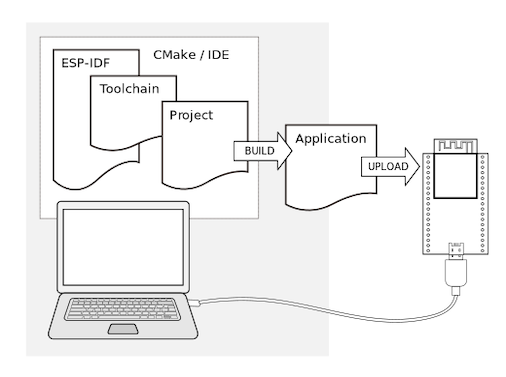
To start using ESP-IDF on ESP32, you need the following software:
Toolchain to compile code for ESP32
Build tools - CMake and Ninja to build a full Application for ESP32
ESP-IDF that essentially contains API (software libraries and source code) for ESP32 and scripts to operate the Toolchain
Installation
To install ESP-IDF, build tools, and the toolchain, use the ESP-IDF Installation Manager (EIM) available for multiple operating systems.
The EIM provides two installation options:
Graphical User Interface (GUI): Offers a user-friendly interface, ideal for most users.
Command Line Interface (CLI): Suitable for CI/CD pipelines and automated installations.
Build Your First Project
Once you have the ESP-IDF installed, you can build your first project either using an IDE or from the command line.
Build in IDE
The ESP-IDF versions installed through EIM can be used in the following IDEs, providing a graphical development experience:
Espressif-IDE based on Eclipse CDT
It includes IDF Eclipse plugins, essential Eclipse CDT plugins, and other third-party plugins from the Eclipse platform to support building ESP-IDF applications.
Visual Studio Code integrated with the ESP-IDF Extension for VS Code
It allows you to develop, build, flash, and monitor ESP-IDF applications directly within the Visual Studio Code.
For instructions on how to set up and use these IDEs with ESP-IDF, please refer to their respective documentation linked above.
Build from Command Line
To start a new project, build it, flash to ESP32, and monitor the device output from the command line, follow instructions for your operating system:
Note
If you have not yet installed ESP-IDF, please go to Installation and follow the instructions there to install all required software before proceeding.
Uninstall ESP-IDF
To uninstall ESP-IDF and related tools installed via EIM, you can use either the graphical user interface (GUI) or the command line interface (CLI).
Uninstall Using EIM GUI
Launch the ESP-IDF Installation Manager. Under Manage Installations, click Open Dashboard.
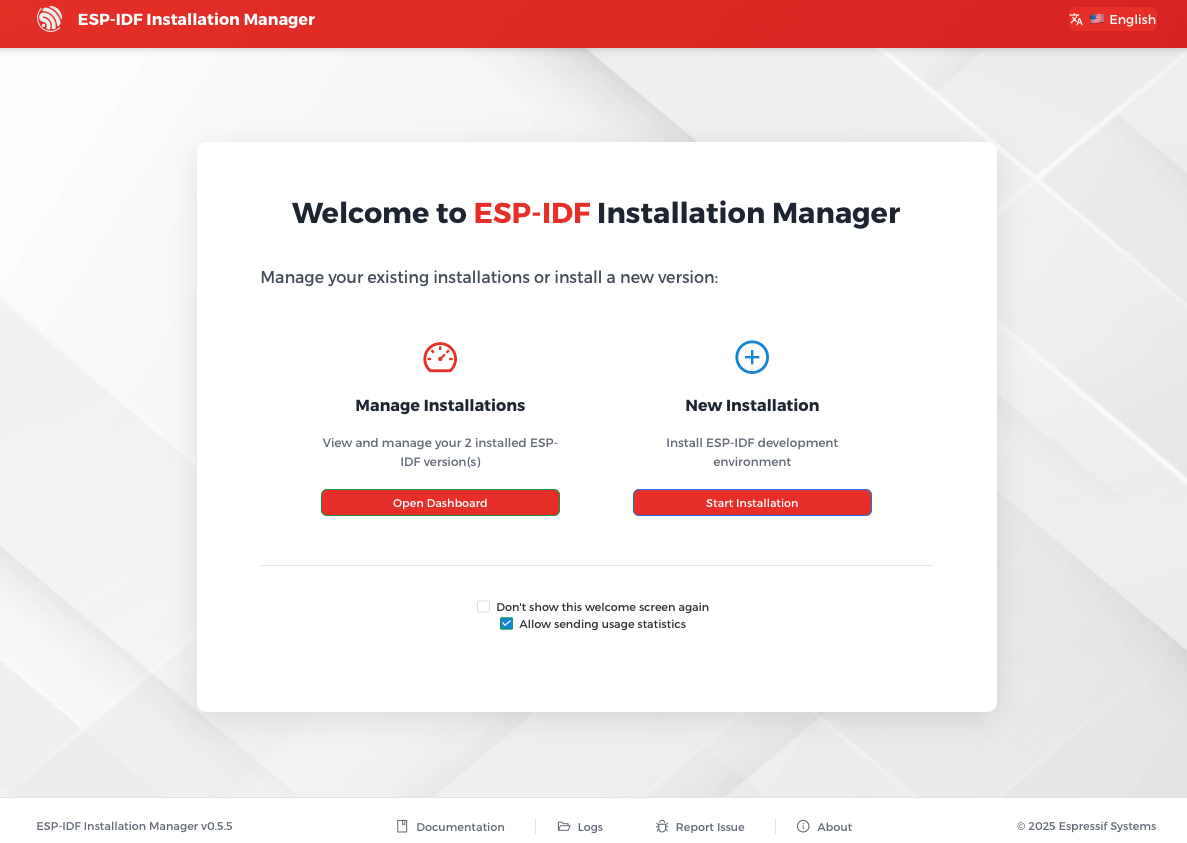
Open Dashboard in EIM GUI
To remove a specific ESP-IDF version, click the Remove button under the version you want to remove.
To remove all ESP-IDF versions, click Purge All button at the bottom of the page.
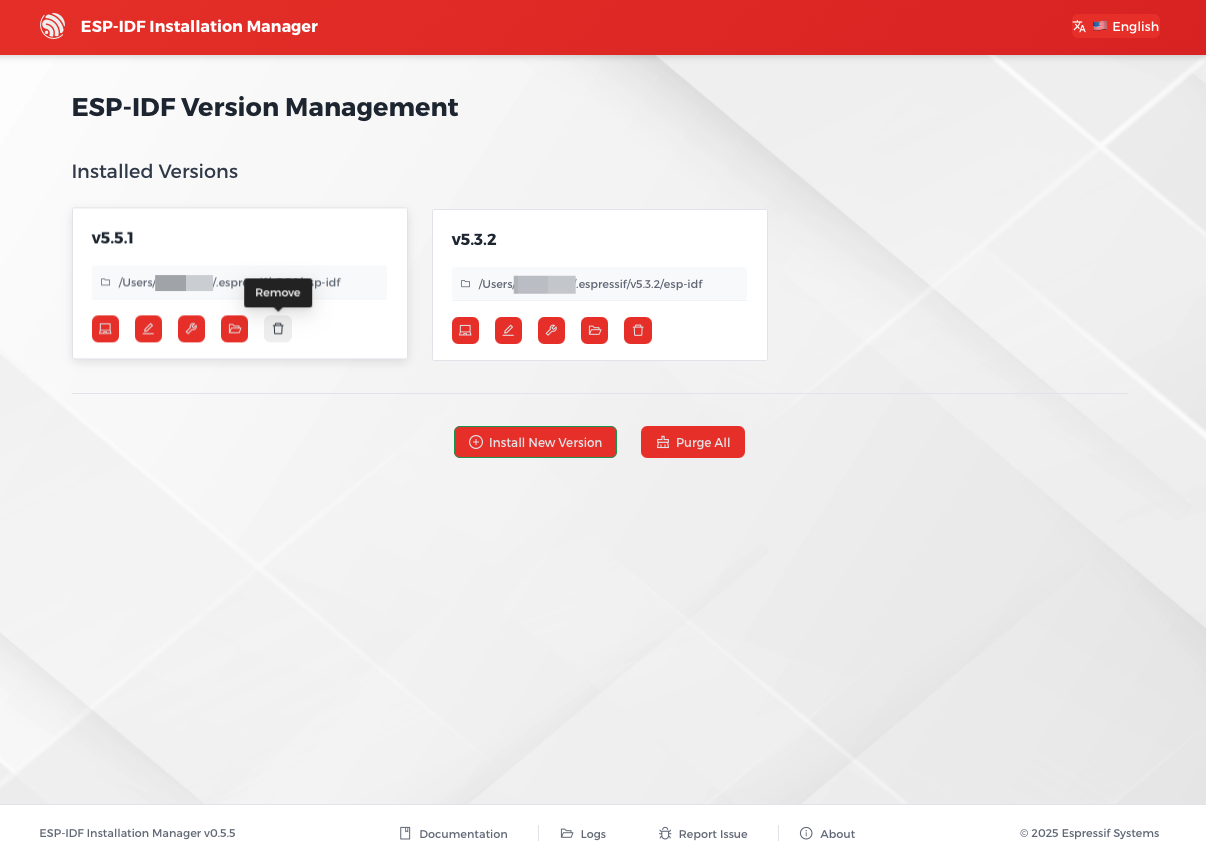
Uninstall ESP-IDF in EIM GUI
Uninstall Using EIM CLI
To remove a specific ESP-IDF version, for example v5.4.2, run the following command in your terminal:
eim uninstall v5.4.2
To remove all ESP-IDF versions, run the following command in your terminal:
eim purge