Connect Your Device
Click the gear icon to select the ESP target for your project and the serial port of your device. Skip this step if these settings were configured during project creation. By default, the launch target dropdown will display all the supported targets provided by the plugin.

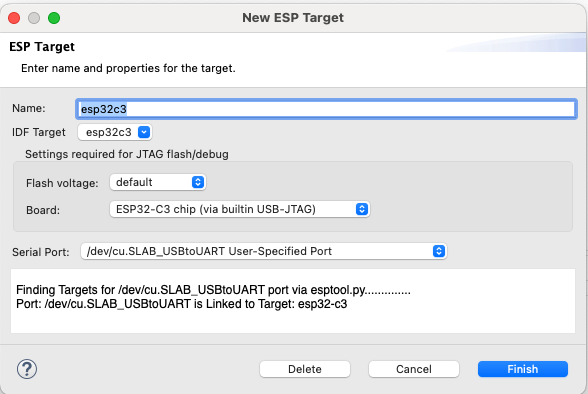
Clicking the gear icon opens the ESP Target configuration dialog, where you can select the serial port for your device and specify the ESP board. The plugin will automatically detect serial ports connected to your machine.
Regarding the serial ports and their patterns, please refer to the ESP-IDF documentation.
Custom Target
If you need to add a target that is not available in the launch target dropdown, please follow the instructions below:
Click on the launch target dropdown.
Select
New Launch Target.Select
ESP Target.Specify the properties of the target device where you want to launch the application. Enter a
Namefor the target and select theSerial Portto which your ESP device is connected on your machine.