Handling Incomplete or Broken Installations
EIM tracks the state of every installation in eim_idf.json. This allows it to detect installations that did not finish correctly — for example because the process was interrupted, the machine was shut down mid-install, or a repair attempt failed.
Installation Statuses
Each entry in eim_idf.json carries a status field:
| Status | When it is set |
|---|---|
in_progress | Set at the very beginning of a fresh install. Cleared to finished on success. |
failed | Set when a fresh install fails before completing. |
finished | Set when an installation or repair completes successfully. |
being_repaired | Set when a repair (fix) begins. Cleared to finished on success. |
broken | Set when a repair fails. |
Existing installations created by EIM versions prior to 3.0 are treated as finished for backward compatibility.
Automatic Detection on Startup
GUI
Every time the GUI application starts, it silently calls check_incomplete_installations. If any non-finished entries are found, a modal dialog appears automatically:
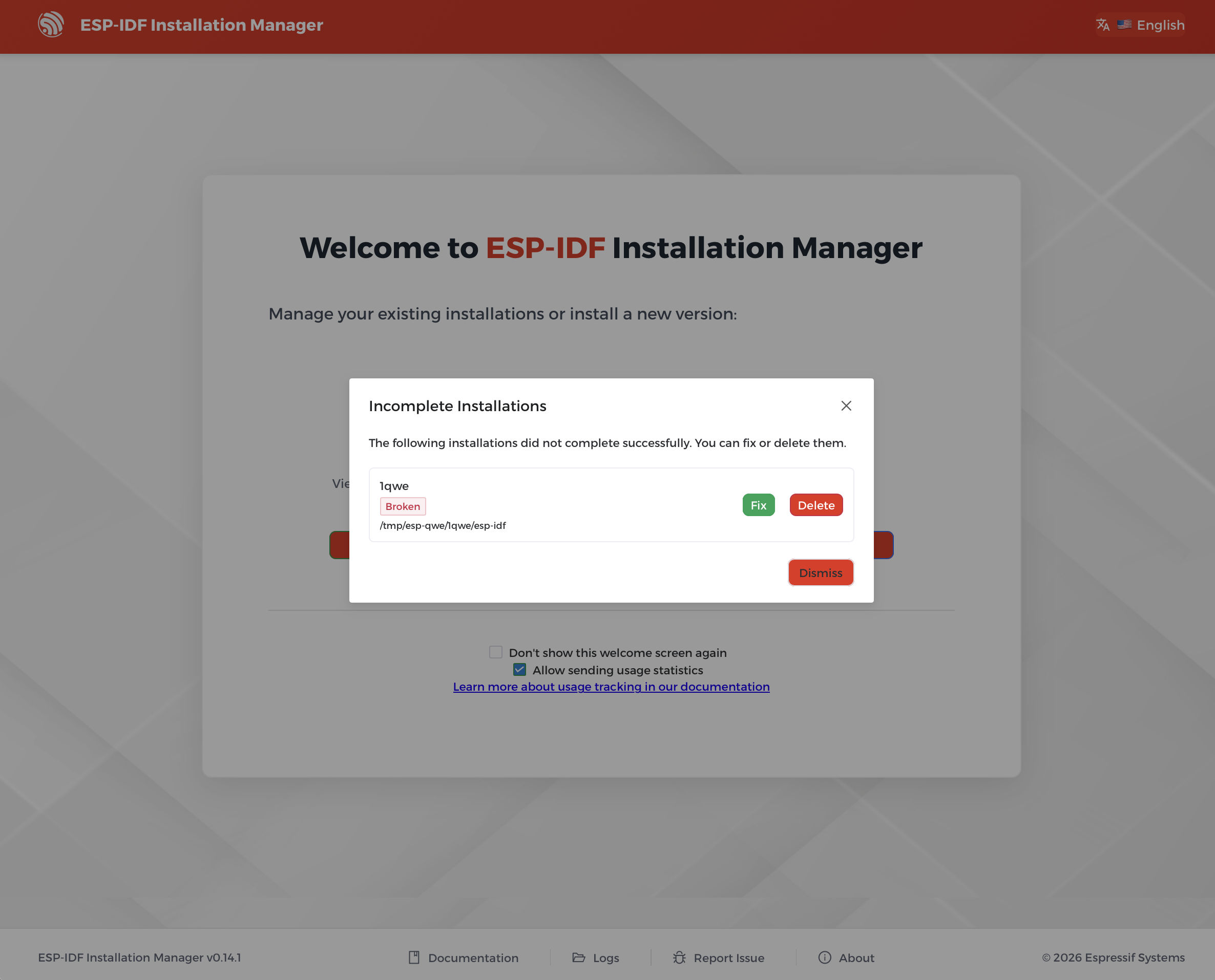
For each incomplete installation the modal shows:
- The installation name
- A colour-coded status tag (orange for in-progress/being-repaired, red for failed/broken)
- The installation path
You can then:
- Fix — starts the repair and navigates you to the live installation progress page.
- Delete — removes the entry and its files permanently.
- Dismiss — closes the modal; the entry remains and will appear again on the next start.
After fixing or deleting an entry, the Version Management dashboard refreshes automatically.
CLI (Interactive Mode)
When running eim wizard (or any interactive install with --non-interactive false), EIM performs the same check before starting the wizard. For each incomplete installation found it presents an interactive menu:
? What would you like to do?
> Fix
  Delete
  Skip
Choosing Fix runs the repair flow inline and continues with the wizard afterwards.
Choosing Delete removes the entry and its files.
Choosing Skip leaves the entry untouched and moves on.
This check does not run for eim fix directly, or when --non-interactive is true (the default for eim install).
Checking Status Manually
# See the status of every installation
eim list
The list command prints the name, path, and status of every known installation.
Repairing an Installation
# Repair interactively (will prompt to select from the list with statuses shown)
eim fix

# Repair a specific installation by path
eim fix /path/to/idf
From the GUI, open the Version Management dashboard, find the broken entry (its status tag will be visible on the card), and click the Fix button (wrench icon).