Update Site Installation Guide
The Espressif-IDE Eclipse Plugin can be installed using the following three methods:
Installing IDF Plugin Using the Update Site URL
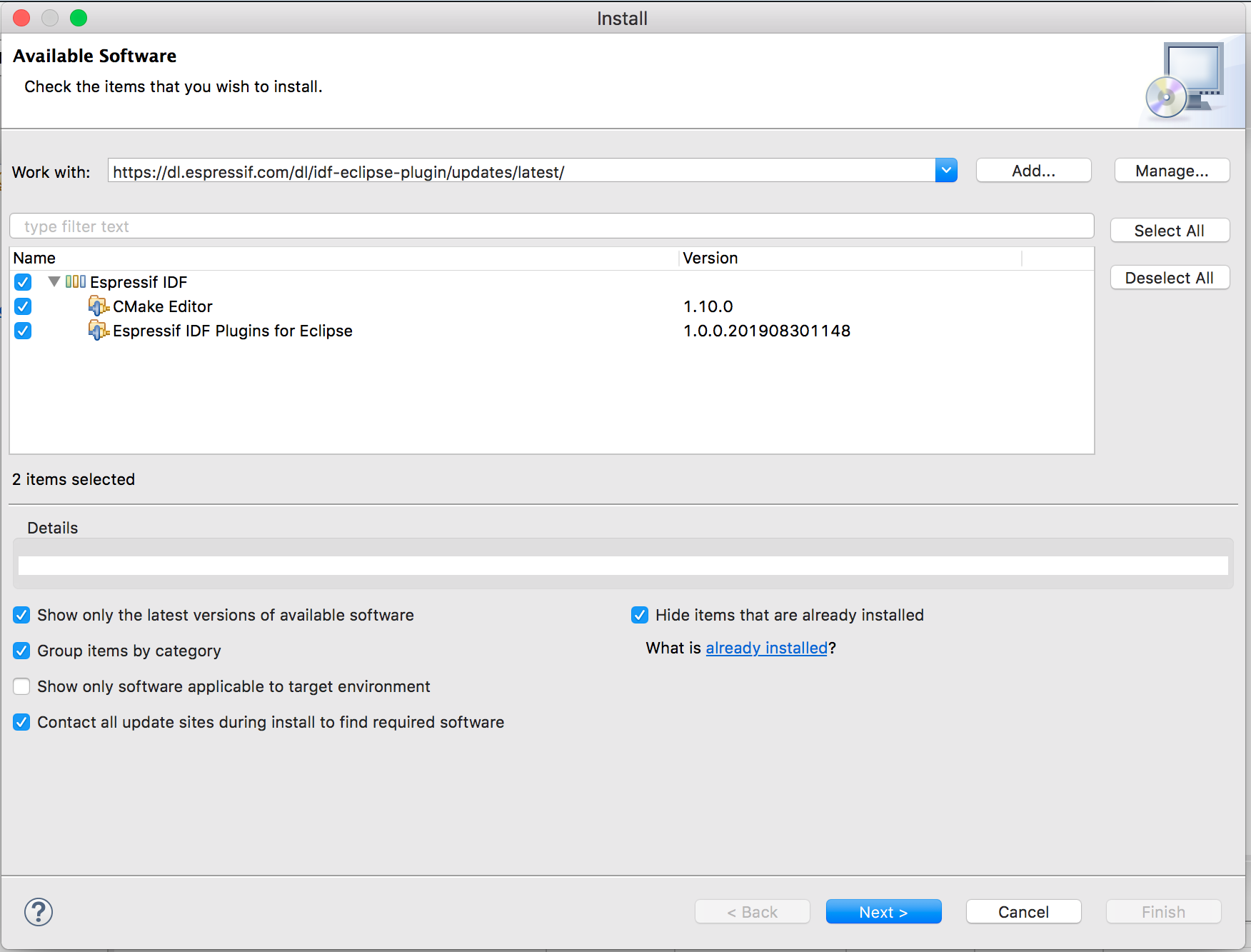
You can install the IDF Eclipse plugin into an existing Eclipse CDT/Espressif-IDE using the update site URL. First, add the release repository URL as follows:
Go to
Help>Install New Software.Click
Add, and in the pop-up window:Enter
Espressif IDF Plugin for Eclipseas theName.Enter
Locationof the repository. (Stable release)Click
Add.
Select all items from the list and proceed with the installation.
For adding beta and nightly builds, you can use the following update site URLs:
Note
Although the following screenshots are captured on macOS, the installation steps are the same for Windows and Linux.
Installing IDF Eclipse Plugin from Eclipse Marketplace
To install the ESP-IDF Eclipse Plugin from the Eclipse Marketplace, follow these steps:
Open Eclipse and go to
Help>Eclipse Marketplace....In the search box, enter ESP-IDF Eclipse Plugin to locate the plugin.
Click
Installand follow the on-screen instructions to complete the installation.After installation, restart Eclipse to activate the plugin.
Installing IDF Eclipse Plugin from Local Archive
To install the ESP-IDF Eclipse Plugin from a local archive, follow these steps:
Download the latest update site archive for the IDF Eclipse Plugin from here.
In Eclipse, go to
Help>Install New Software.Click the
Addbutton.In the
Add Repositorydialog, selectArchiveand choose the filecom.espressif.idf.update-vxxxxxxx.zip.Click
Add.Select
Espressif IDFfrom the list and continue with the installation.After the installation is complete, restart Eclipse.
How to Upgrade Existing IDF Eclipse Plugin
If you are installing the IDF Eclipse Plugin for the first time, follow these steps to add the repository for the new release:
Go to
Window>Preferences>Install/Update>Available Software Sites.Click
Add.Enter the URL of the new repository: .
Click
Ok.
If you have already installed the IDF Eclipse Plugin using the update site URL, you can upgrade to the latest version with the following steps:
Go to
Help>Check for Updates.If updates are found, select
Espressif IDF Plugins for Eclipseand deselect all other items.Click
Nextto proceed with the installation.
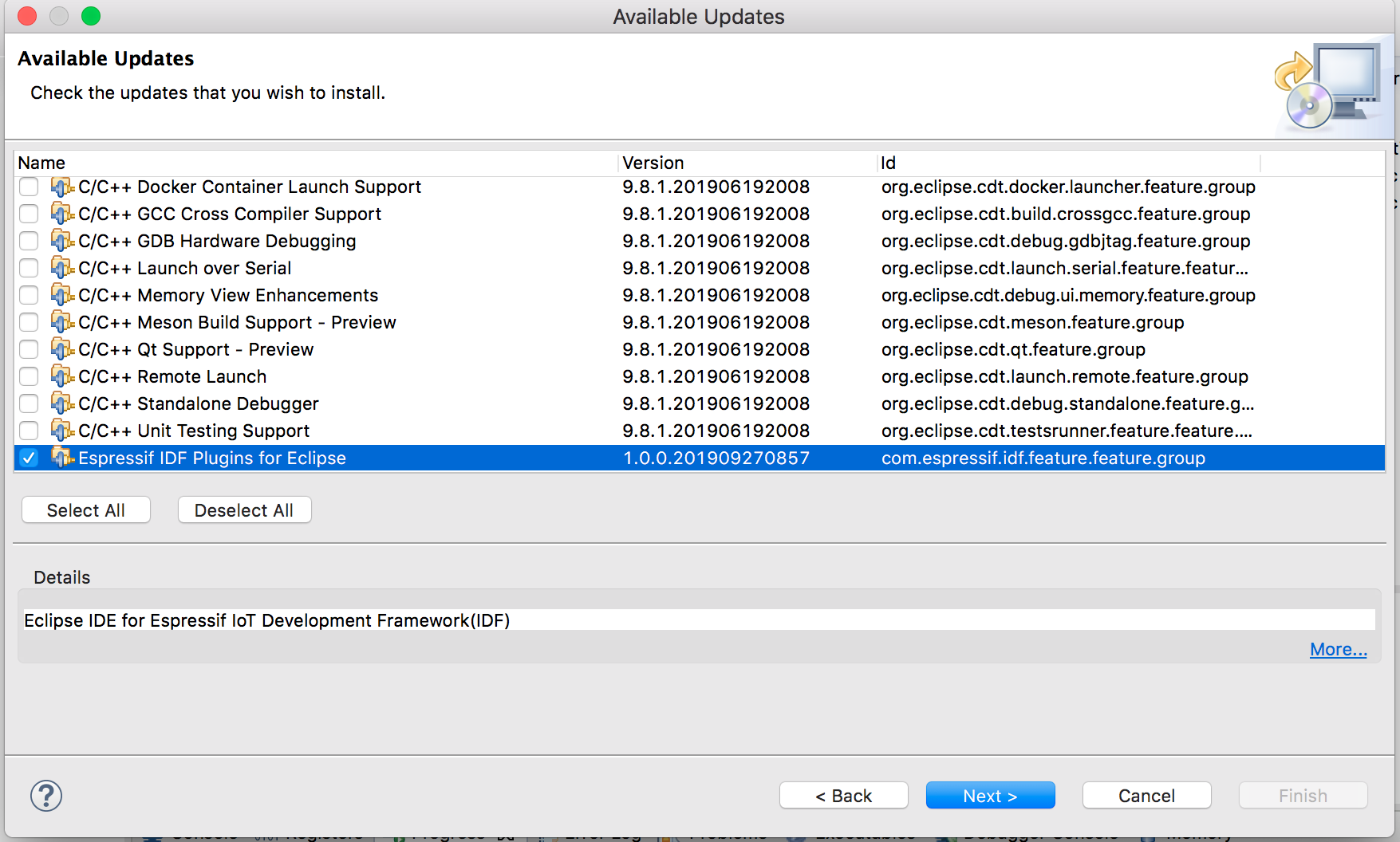
Upgrading from Espressif-IDE 3.3.0 to 3.4.0
If the next version of the plugin requires updated dependencies (e.g., the minimum CDT version has changed from 11.6 to 12), make sure these dependencies are updated during installation from the update site.
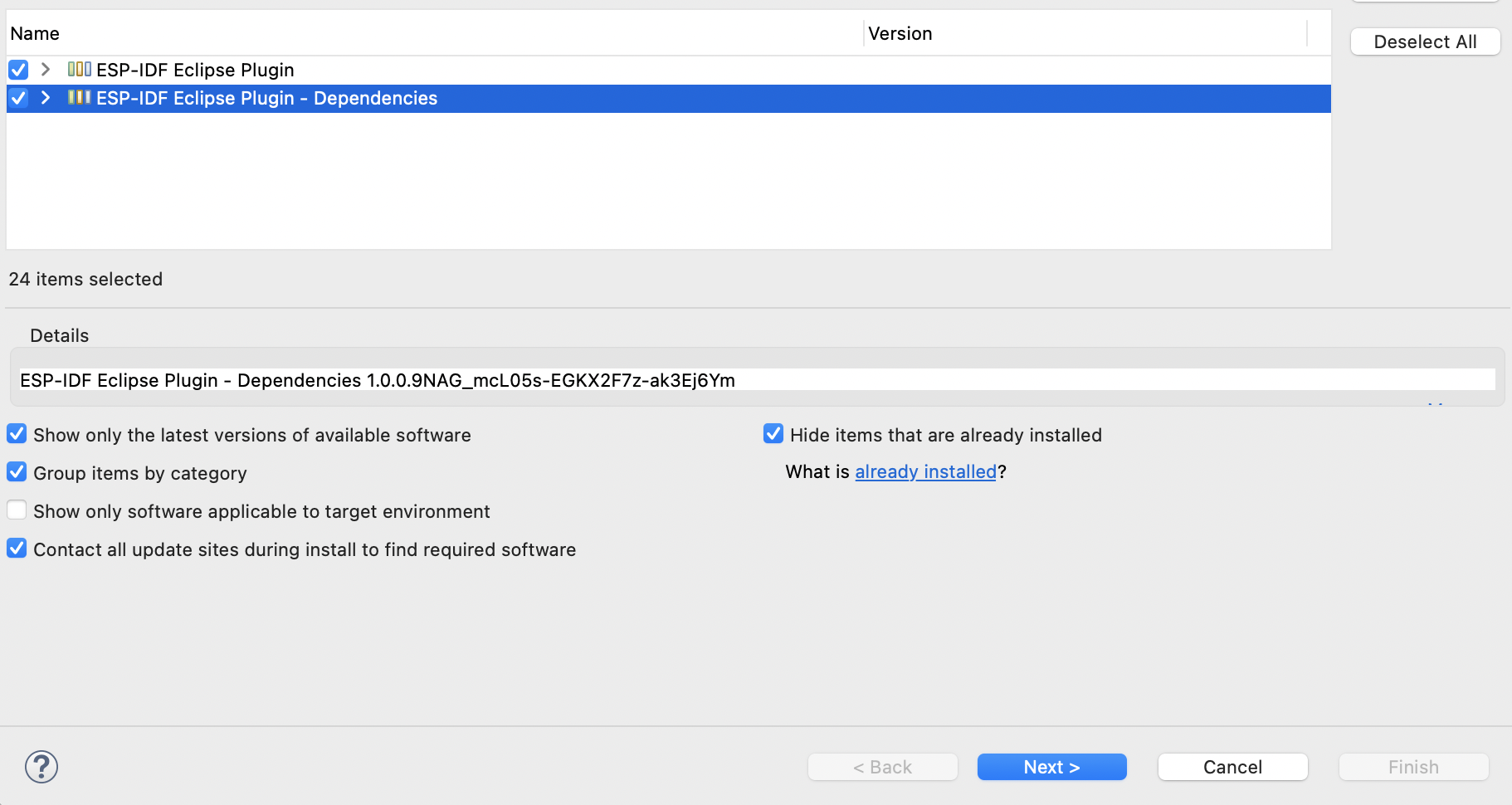
If the required dependencies are not updated, the installer will display the following error:
The installation cannot be completed as requested.
To resolve this:
Click
Show original error and build my own solution.Then select both:
Update items already installedRemove items already installed
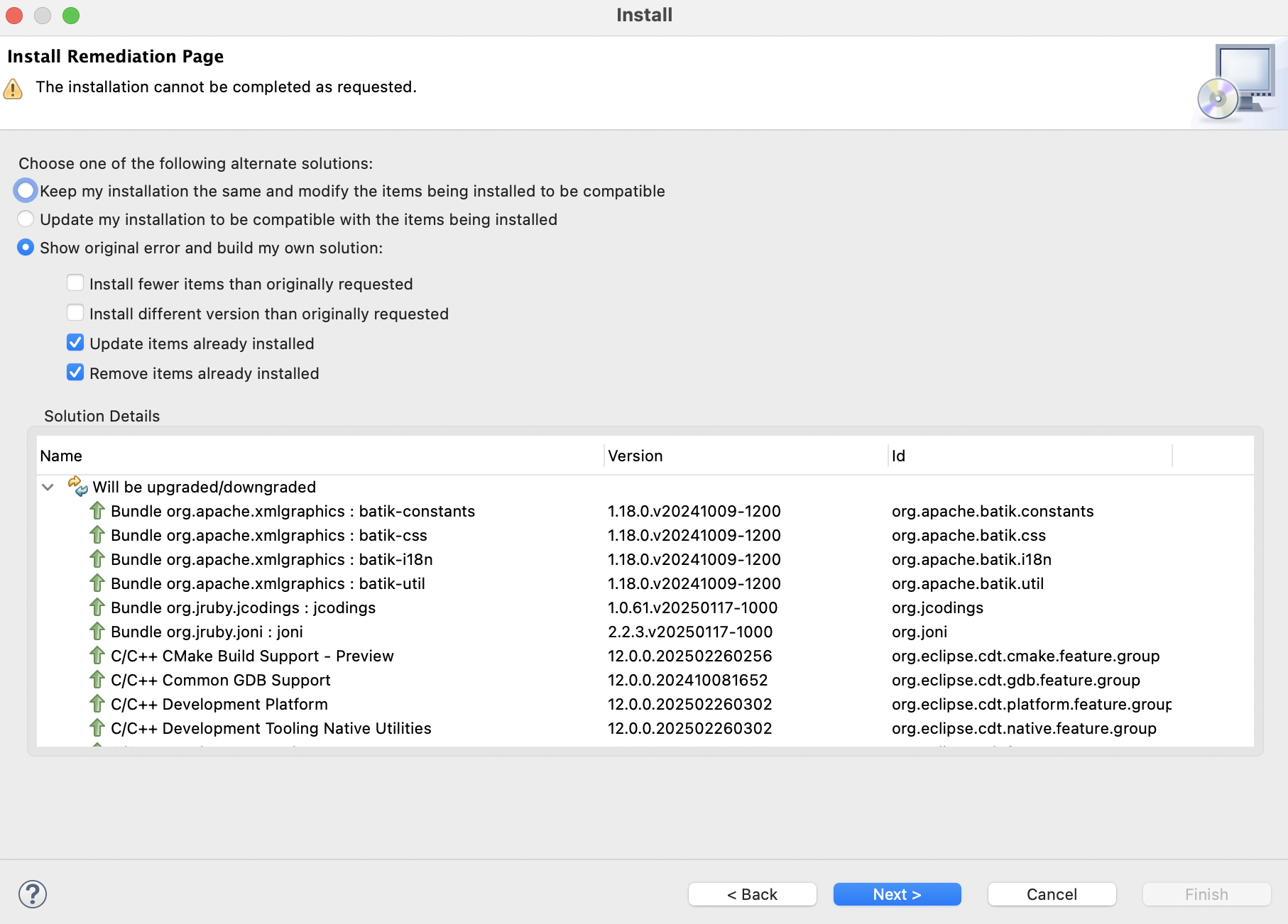
This ensures that the installer can update or replace any conflicting components, allowing the installation to complete successfully.
Troubleshooting
If you encounter the error Cannot complete the install because one or more required items could not be found. during installation, it usually means that the Eclipse Platform update site is not enabled.
To resolve this issue:
Go to
Help>Install New Software.Click
Manage.Make sure the option for the
Eclipse Platform - Latest Release Update Siteis enabled.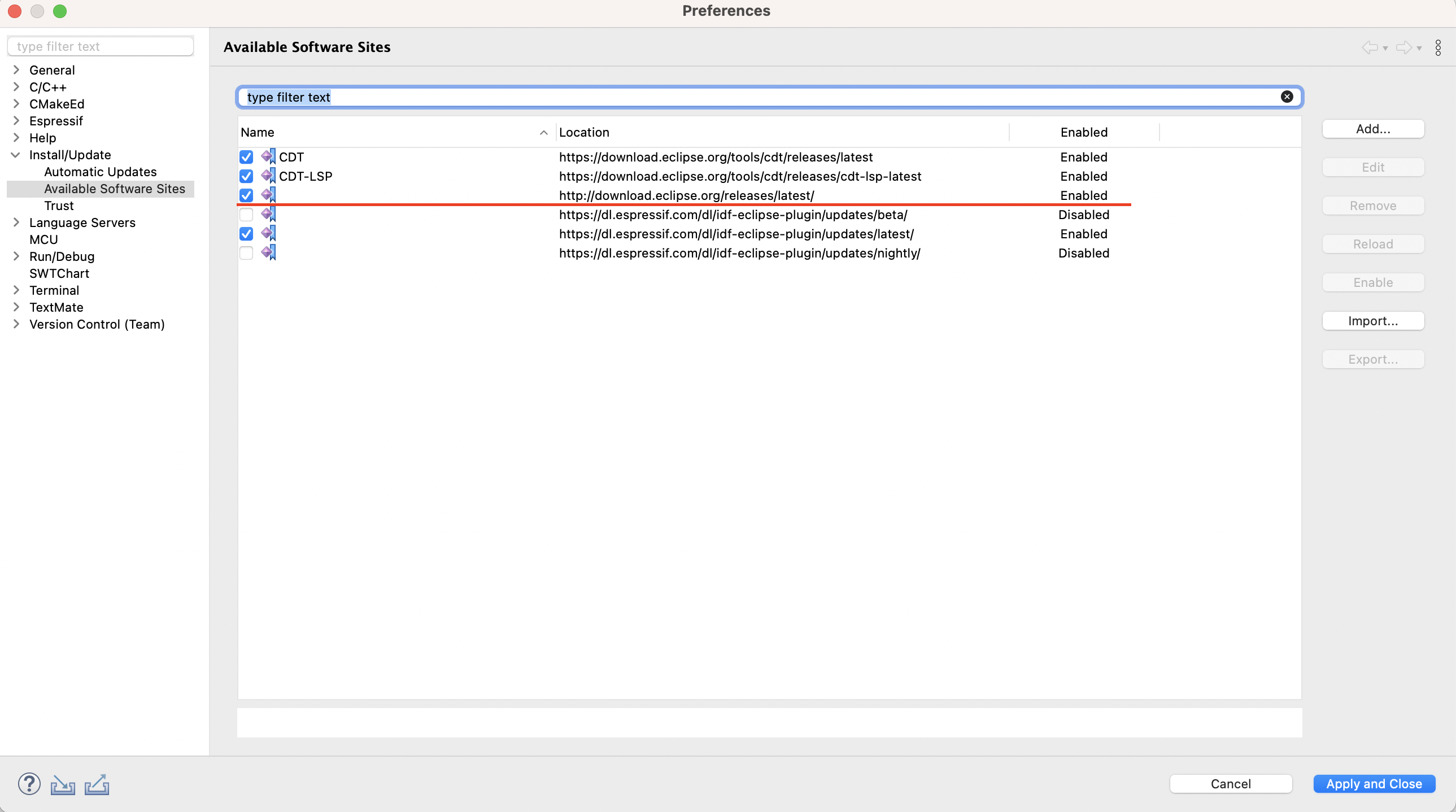
Apply the changes and close the dialog.
Then go to
Help>Check for Updatesand proceed with updating the IDE and its dependencies.
Note
Enabling the Eclipse Platform update site ensures that all required dependencies are properly resolved during installation or upgrade.