Start a Project on Linux and macOS from Command Line
This guide helps you to start a new project on the ESP32-C61 and build, flash, and monitor the device output on Linux and macOS.
Activate the Environment
Note
This section describes the default and recommended procedures to activate the environment from ESP-IDF v6.0. If you use the legacy installation method on Linux and macOS, skip this section.
Before using ESP-IDF tools in the terminal, you must activate the ESP-IDF environment. You can do this either via the GUI or CLI.
Activate Using EIM GUI
Open the ESP-IDF Installation Manager application eim.
Under Manage Installations, click Open Dashboard.
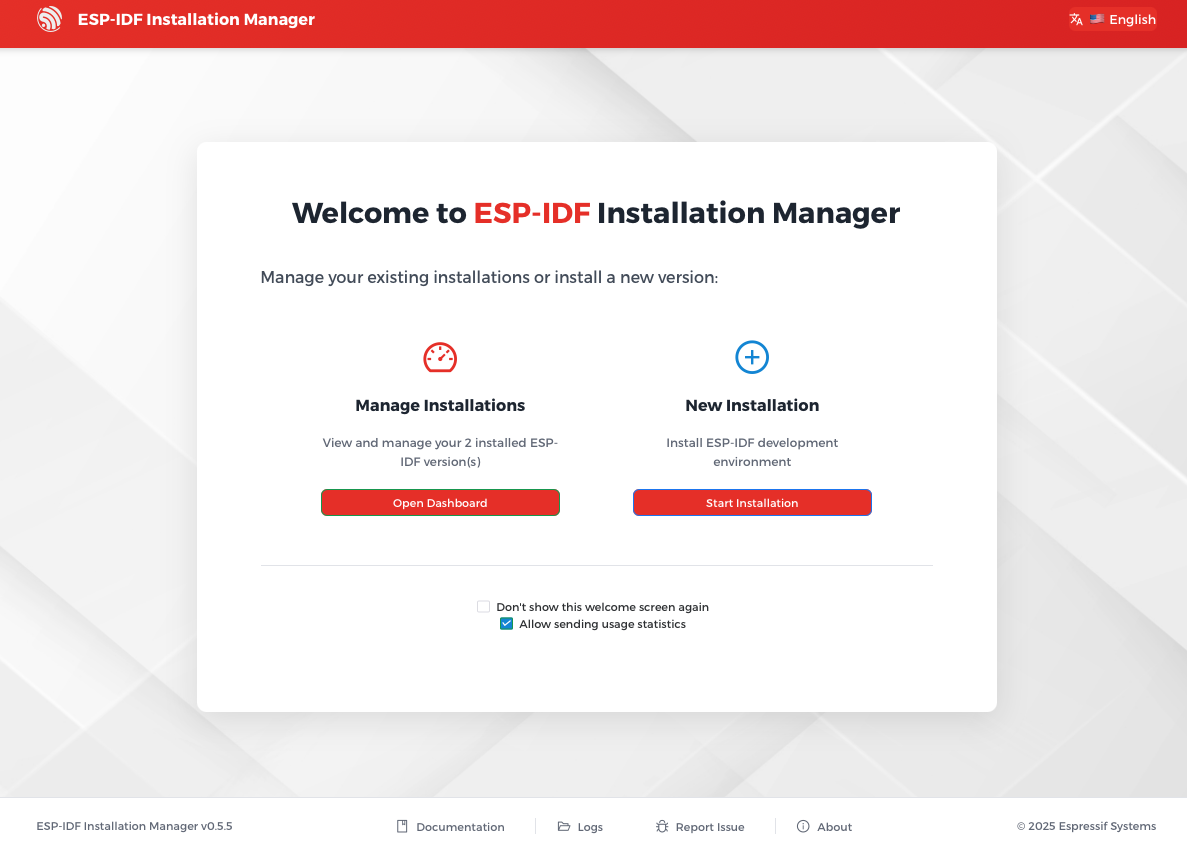
EIM Manage Installations
In the dashboard, you will see all the installed ESP-IDF versions. Select the version you want to use, and click Open IDF Terminal to launch a terminal session with activated ESP-IDF environment.
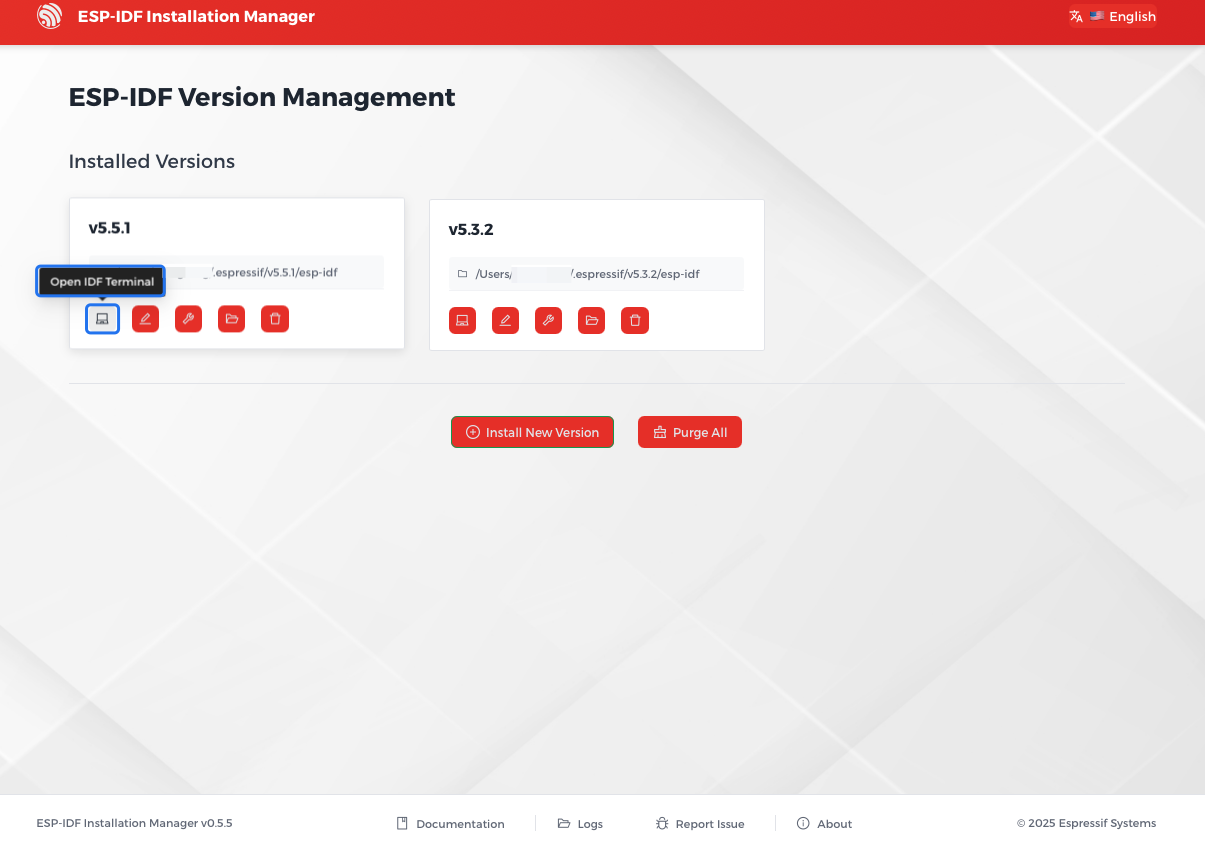
EIM Open IDF Terminal
Activate Using EIM CLI
Upon successful installation of ESP-IDF, the EIM CLI prints a command to activate the ESP-IDF environment. For example:
You have successfully installed ESP-IDF
for using the ESP-IDF tools inside the terminal, you will find activation scripts inside the base install folder
sourcing the activation script will setup environment in the current terminal session
============================================
to activate the environment, run the following command in your terminal:
    source "/Users/username/.espressif/tools/activate_idf_v5.4.2.sh"
============================================
Run the highlighted command in your terminal:
source "/Users/username/.espressif/tools/activate_idf_v5.4.2.sh"
Once done, you have successfully activated the ESP-IDF environment in your terminal. All subsequent ESP-IDF commands should be run in this activated terminal.
Start a Project
Now you are ready to prepare your application for ESP32-C61. You can start with get-started/hello_world project from examples directory in ESP-IDF.
Important
The ESP-IDF build system does not support spaces in the paths to either ESP-IDF or to projects.
Copy the project get-started/hello_world to ~/esp directory:
cd ~/esp
cp -r $IDF_PATH/examples/get-started/hello_world .
Note
There is a range of example projects in the examples directory in ESP-IDF. You can copy any project in the same way as presented above and run it. It is also possible to build examples in-place without copying them first.
Connect Your Device
Now connect your ESP32-C61 board to the computer and check under which serial port the board is visible.
Serial ports have the following naming patterns:
Linux: starting with
/dev/ttymacOS: starting with
/dev/cu.
If you are not sure how to check the serial port name, please refer to Establish Serial Connection with ESP32-C61 for full details.
Note
Keep the port name handy as it is needed in the next steps.
Configure Your Project
Navigate to your hello_world directory, set ESP32-C61 as the target, and run the project configuration utility menuconfig.
cd ~/esp/hello_world
idf.py set-target esp32c61
idf.py menuconfig
After opening a new project, you should first set the target with idf.py set-target esp32c61. Note that existing builds and configurations in the project, if any, are cleared and initialized in this process. The target may be saved in the environment variable to skip this step at all. See Select the Target Chip: set-target for additional information.
If the previous steps have been done correctly, the following menu appears:
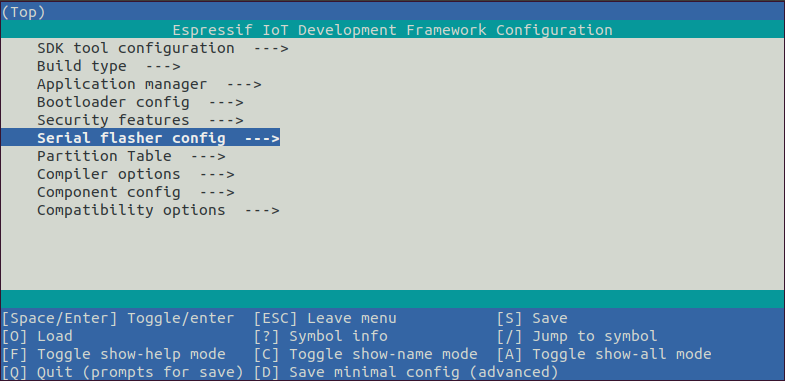
Project configuration - Home window
You are using this menu to set up project specific variables, e.g., Wi-Fi network name and password, the processor speed, etc. Setting up the project with menuconfig may be skipped for "hello_world", since this example runs with default configuration.
Note
The colors of the menu could be different in your terminal. You can change the appearance with the option --style. Please run idf.py menuconfig --help for further information.
Build the Project
Build the project by running:
idf.py build
This command compiles the application and all ESP-IDF components, then it generates the bootloader, partition table, and application binaries.
$ idf.py build
Running cmake in directory /path/to/hello_world/build
Executing "cmake -G Ninja --warn-uninitialized /path/to/hello_world"...
Warn about uninitialized values.
-- Found Git: /usr/bin/git (found version "2.17.0")
-- Building empty aws_iot component due to configuration
-- Component names: ...
-- Component paths: ...

... (more lines of build system output)

[527/527] Generating hello_world.bin
esptool v5.0.2

Project build complete. To flash, run:
  idf.py flash
or
  idf.py -p PORT flash
or
  esptool -p (PORT) -b 921600 write-flash --flash-mode dio --flash-size detect --flash-freq 40m 0x10000 build/hello_world.bin  build 0x1000 build/bootloader/bootloader.bin 0x8000 build/partition_table/partition-table.bin
If there are no errors, the build finishes by generating the firmware binary .bin files.
Flash onto the Device
To flash the binaries that you just built for the ESP32-C61 in the previous step, you need to run the following command:
idf.py -p PORT flash
Replace PORT with your ESP32-C61 board's USB port name. If the PORT is not defined, the idf.py will try to connect automatically using the available USB ports.
For more information on idf.py arguments, see idf.py.
Note
The option flash automatically builds and flashes the project, so running idf.py build is not necessary.
Encountered Issues While Flashing? See the "Additional Tips" below. You can also refer to Flashing Troubleshooting page or Establish Serial Connection with ESP32-C61 for more detailed information.
Normal Operation
When flashing, you will see the output log similar to the following:
esptool --chip esp32c61 -p /dev/ttyUSB0 -b 460800 --before=default-reset --after=hard-reset write-flash --flash-mode dio --flash-freq 80m --flash-size 2MB 0x0 bootloader/bootloader.bin 0x8000 partition_table/partition-table.bin 0x10000 hello_world.bin
esptool v5.2.dev1
Connected to ESP32-C61 on /dev/ttyUSB0:
Chip type:          ESP32-C61 (revision v1.0)
Features:           Wi-Fi 6, BT 5 (LE), Single Core, 160MHz
Crystal frequency:  40MHz
MAC:                30:ed:a0:eb:e1:08

Stub flasher running.
Changing baud rate to 460800...
Changed.

Configuring flash size...
Flash will be erased from 0x00000000 to 0x00005fff...
Flash will be erased from 0x00008000 to 0x00008fff...
Flash will be erased from 0x00010000 to 0x0002dfff...
SHA digest in image updated.
Wrote 22528 bytes (13858 compressed) at 0x00000000 in 0.5 seconds (358.5 kbit/s).
Hash of data verified.
Wrote 3072 bytes (103 compressed) at 0x00008000 in 0.0 seconds (684.7 kbit/s).
Hash of data verified.
Wrote 121632 bytes (65182 compressed) at 0x00010000 in 1.9 seconds (507.7 kbit/s).
Hash of data verified.

Hard resetting via RTS pin...
If there are no issues by the end of the flash process, the board will reboot and start up the "hello_world" application.
If you would like to use the Eclipse or VS Code IDE instead of running idf.py, check out Eclipse Plugin, VSCode Extension.
Monitor the Output
To check if "hello_world" is indeed running, type idf.py -p PORT monitor (Do not forget to replace PORT with your serial port name).
This command launches the IDF Monitor application.
$ idf.py -p <PORT> monitor
Running idf_monitor in directory [...]/esp/hello_world/build
Executing "python [...]/esp-idf/tools/idf_monitor.py -b 115200 [...]/esp/hello_world/build/hello_world.elf"...
--- idf_monitor on <PORT> 115200 ---
--- Quit: Ctrl+] | Menu: Ctrl+T | Help: Ctrl+T followed by Ctrl+H ---
ets Jun  8 2016 00:22:57

rst:0x1 (POWERON_RESET),boot:0x13 (SPI_FAST_FLASH_BOOT)
ets Jun  8 2016 00:22:57
...
After startup and diagnostic logs scroll up, you should see "Hello world!" printed out by the application.
    ...
    Hello world!
    Restarting in 10 seconds...
    This is esp32c61 chip with 1 CPU core(s), WiFi/BLE, silicon revision v1.0, 2 MB external flash
Minimum free heap size: 272868 bytes
    Restarting in 9 seconds...
    Restarting in 8 seconds...
    Restarting in 7 seconds...
To exit IDF monitor use the shortcut Ctrl+].
Note
You can combine building, flashing and monitoring into one step by running:
idf.py -p PORT flash monitor
See also:
IDF Monitor for handy shortcuts and more details on using IDF monitor.
idf.py for a full reference of
idf.pycommands and options.
That is all that you need to get started with ESP32-C61!
Now you are ready to try some other examples, or go straight to developing your own applications.
Important
Some of examples do not support ESP32-C61 because required hardware is not included in ESP32-C61 so it cannot be supported.
If building an example, please check the README file for the Supported Targets table. If this is present including ESP32-C61 target, or the table does not exist at all, the example will work on ESP32-C61.
Additional Tips
Permission Denied Issue
With some Linux distributions, you may get the error message similar to Could not open port <PORT>: Permission denied: '<PORT>' when flashing the ESP32-C61. This can be solved by adding the current user to the specific group, such as dialout or uucp group.
Python Compatibility
ESP-IDF supports Python 3.10 or newer. It is recommended to upgrade your operating system to a recent version satisfying this requirement. Other options include the installation of Python from sources or the use of a Python version management system such as pyenv.
Flash Erase
Erasing the flash is also possible. To erase the entire flash memory you can run the following command:
idf.py -p PORT erase-flash
For erasing the OTA data, if present, you can run this command:
idf.py -p PORT erase-otadata
The flash erase command can take a while to be done. Do not disconnect your device while the flash erasing is in progress.