HTTP Debugging Tool Usage Example
Note
This document is automatically translated using AI. Please excuse any detailed errors. The official English version is still in progress.
For common questions about HTTP, please refer to HTTP FAQ.
The following illustrates the troubleshooting method for ESP-IDF HTTP errors through specific cases, and shows how debugging tools can help quickly confirm the cause of the problem and the final solution.
Example: No response or error message returned after the client sends a GET request
Problem Description:
In this example, the ESP32 device is used as an HTTP server, and the Apple device is used as a client. The client sends multiple GET requests, some of which have no response or return error messages.
Problem Analysis:
By comparing the client logs when accessing the server with an Apple device and normal access, and Wireless Packet Capture, it is concluded that when accessing with an Apple device, no subsequent requests are sent after the GET /api/sys/basic/get request, causing the HTTP server to not reply to the corresponding request’s html webpage.
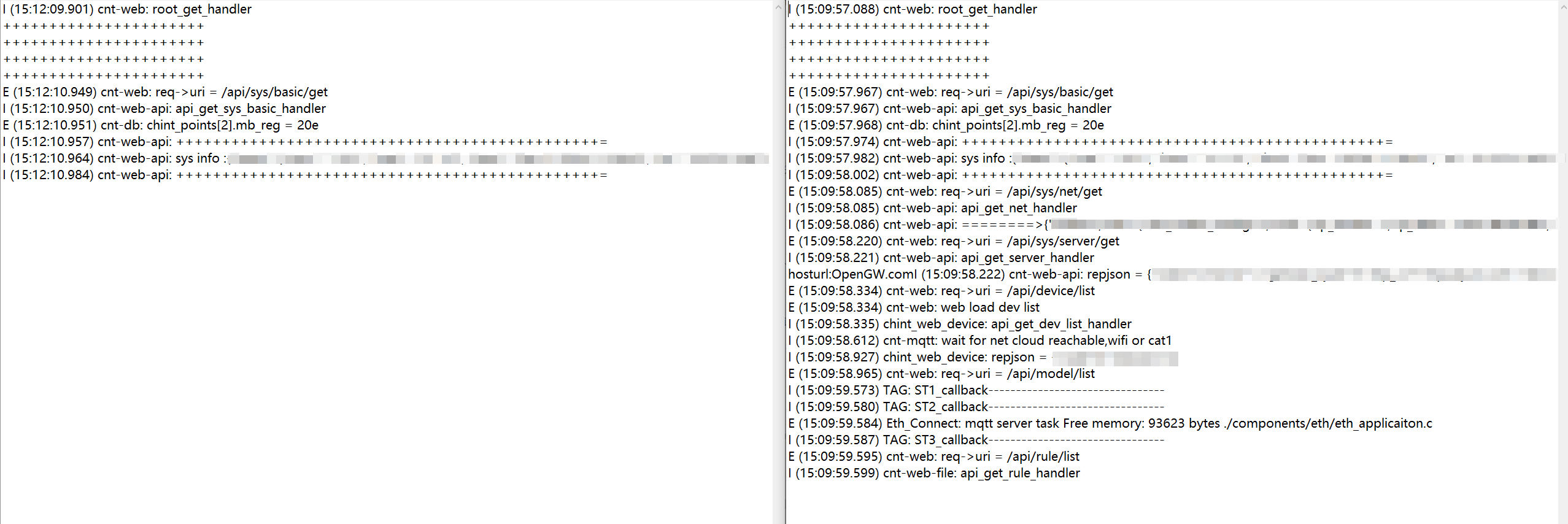
Logs (left image is access using Apple device, right image is normal access)
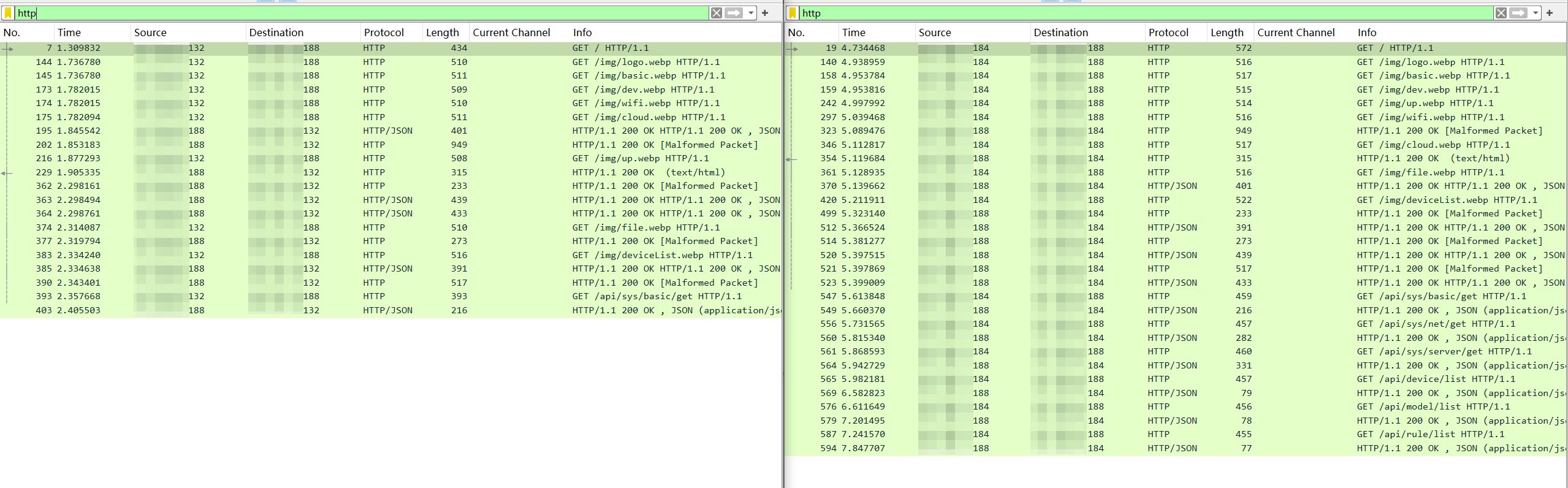
Wireless Packet Capture (left image is access using Apple device, right image is normal access)
Example: Error message returned after the client sends a GET request
Problem Description:
In this example, the ESP32 device accesses the specified HTTP server and performs the following operations:
Send a GET request to get server information
Send a POST request for identity verification and get a Token
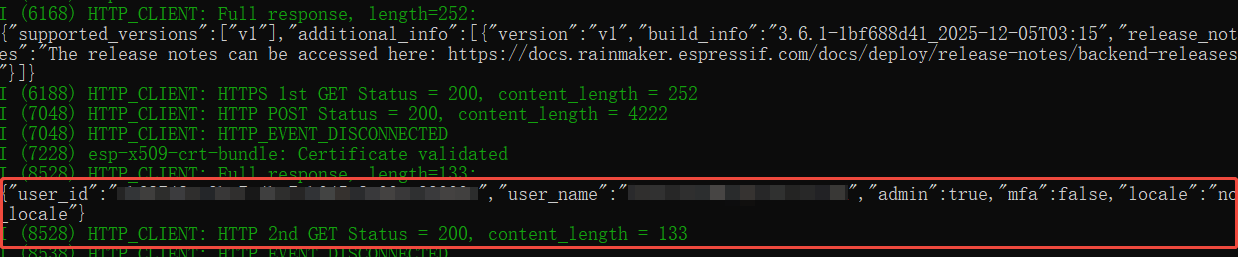
Add the Token to the request header and send a GET request again to get user information
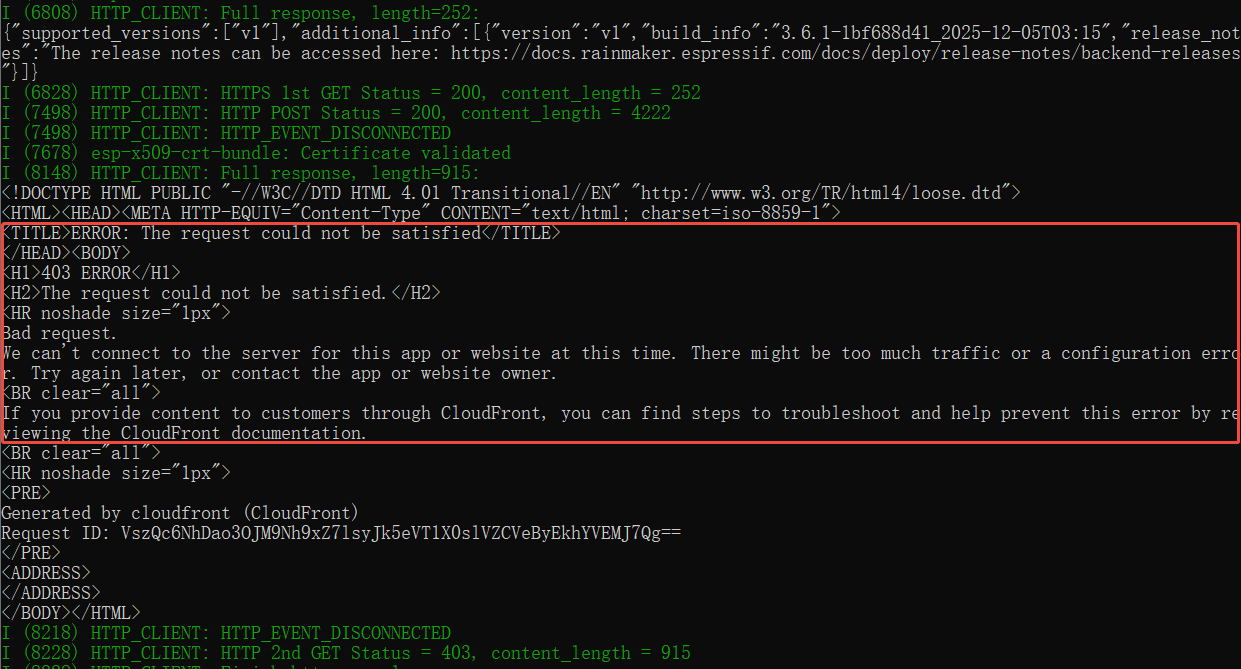
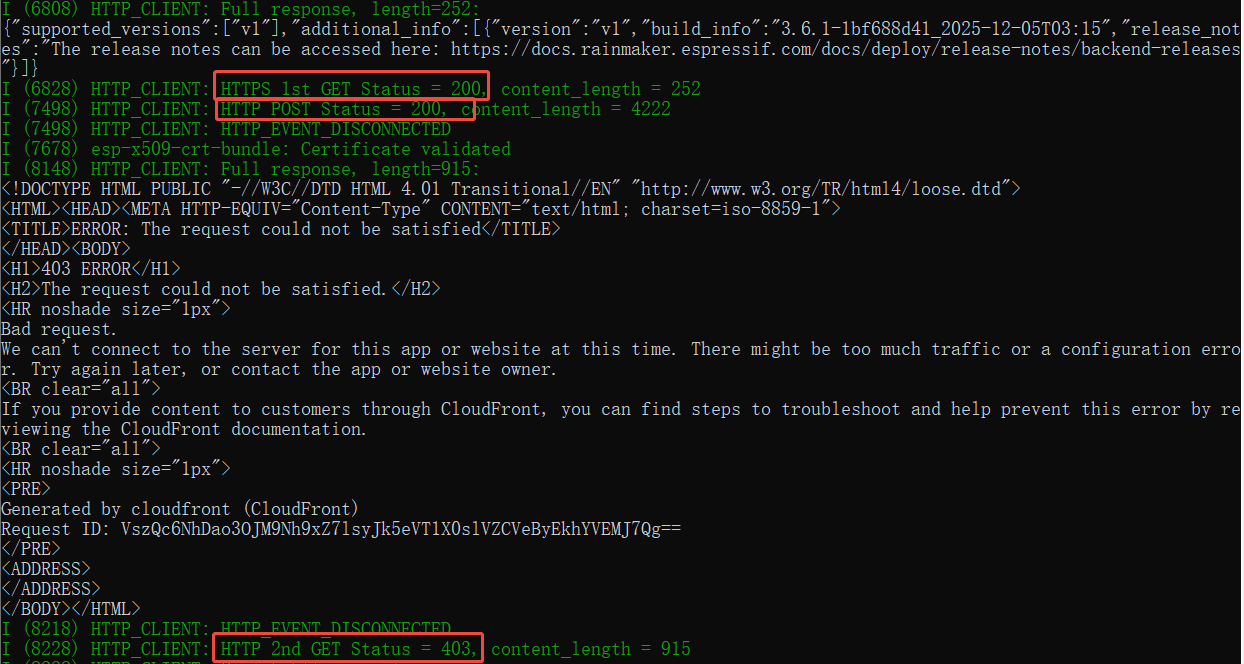
It is observed from the device-side log that the second GET request returns ERROR: The request could not be satisfied.
Problem Analysis:
Status Code Analysis
By viewing the HTTP status code printed by the device-side log and the HTTP Status Code Definition, the following information is obtained:
The status code 200 returned by the first GET request corresponds to
HttpStatus_Ok, indicating that the request was successfully sent;The POST request also returns a status code of 200, indicating that the request was successfully sent;
The status code 403 returned by the second GET request corresponds to
HttpStatus_Forbidden, indicating that the server refused to execute the request.
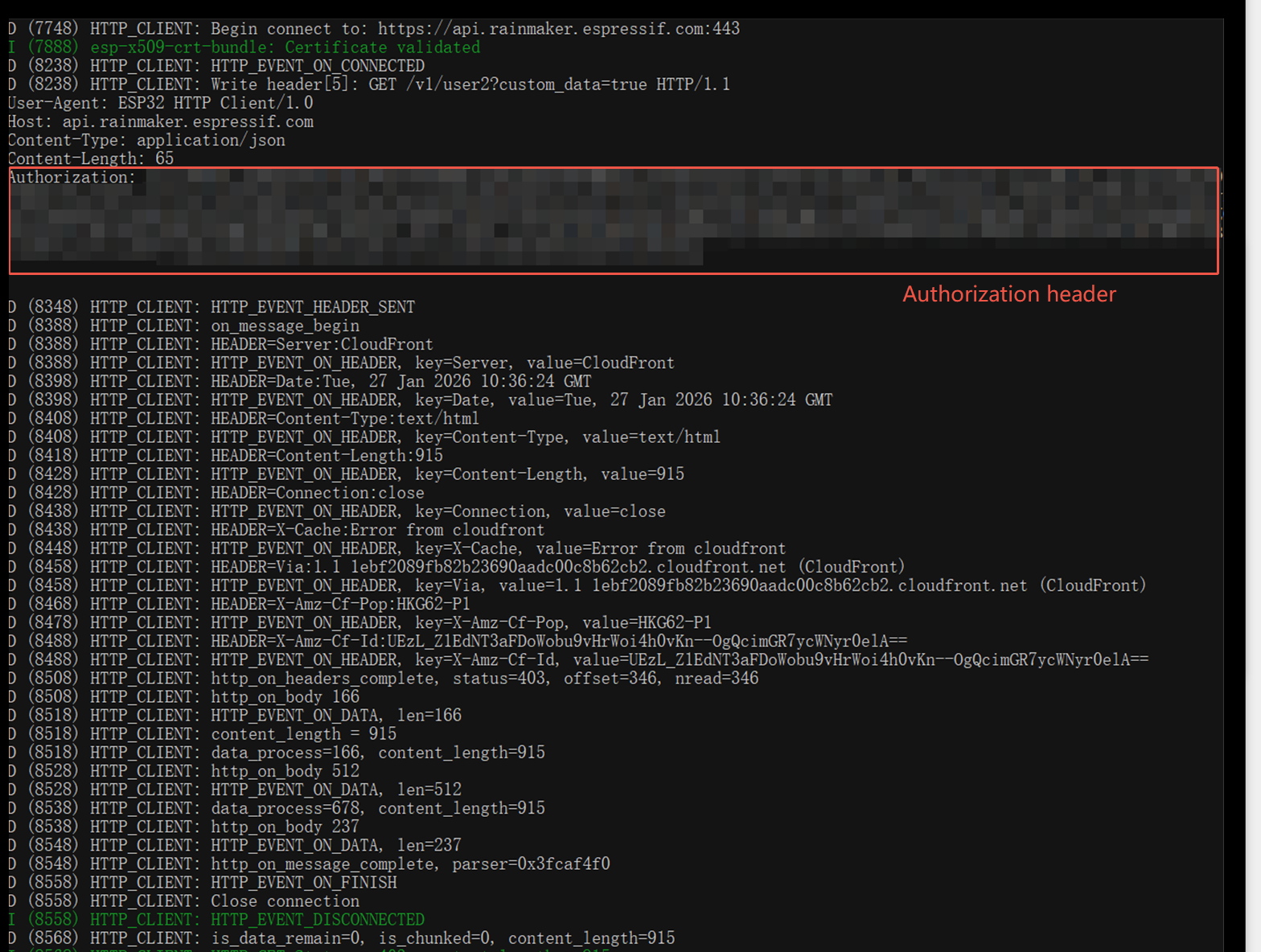
Enable Application Layer Debug Log
View the complete request and response process of the device-side HTTP client through the Application Layer Debug Log, according to the log content, you can confirm that the Authorization token has been correctly added to the request header and successfully passed to the server.
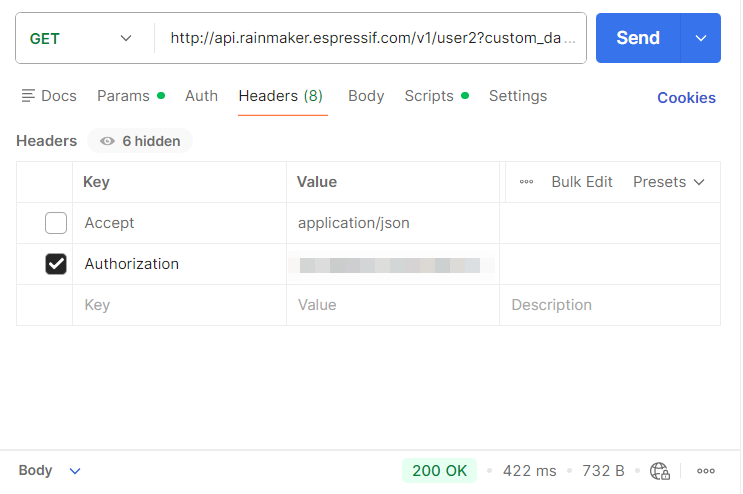
Verify Token Validity
Use the HTTP Local Test Tool to input the Token used by the device side, and the return status code 200 indicates that the token is valid and the server allows access.
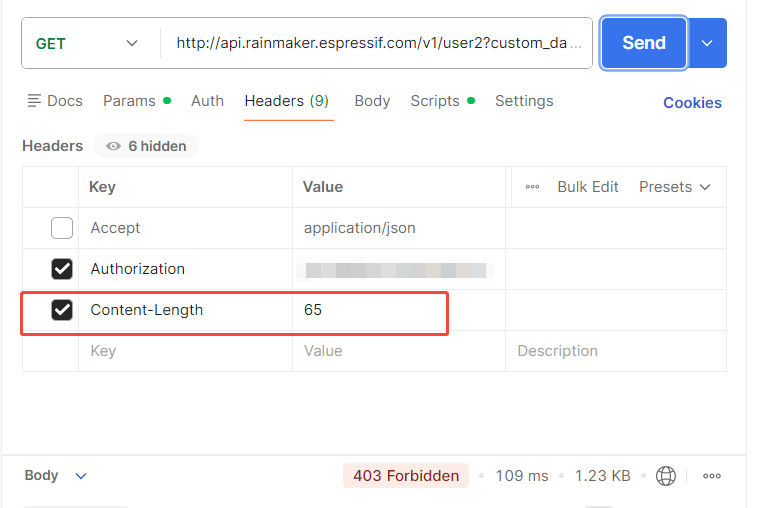
Capture and Compare Request Differences
Obtain the request content sent to the server by the local test tool through Wireless Capture, and compare it with the request header in the device-side Debug Log. After comparison, it is found that there is Content-Length in the request header of the device side, but the request sent by the local test tool does not have this field.

Locate the Problem
After adding the Content-Length request header (with a value not equal to 0) in the local test tool, access the server again, and also return 403, it is judged that the Content-Length request header causes the server to refuse access. Further inspection of the device-side code found that the body was not cleared after the POST request was completed, causing the subsequent GET request to automatically carry the extra Content-Length, thereby causing an error.
Solution:
After sending the POST request, call esp_http_client_set_post_field(client, NULL, 0); to actively clear the HTTP body. Here, NULL means no further POST data pointers are set, and 0 indicates a request body length of 0, ensuring subsequent GET requests do not contain a request body.
After recompiling and running, the second GET request returns 200, indicating that user data has been successfully retrieved.