Flash Download Tool User Guide
Preparation
The software and hardware resources required for downloading firmware to flash are listed below.
Hardware:
1 x module to which firmware is downloaded
1 x PC (Windows 7 [64 bits], Windows 10)
Software:
Tool Overview
User Interface
Open the Flash Download Tool, double-click the .exe file to enter the main interface of the tool, as shown in the figure below:
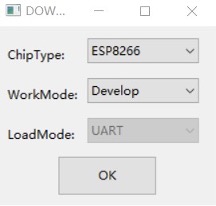
Flash Download Tool Main Interface
ChipType: Selects the chip type for your product.WorkMode: Work mode of the tool. Below are the differences between the two modes supported currently,DevelopandFactorymodes.Developmode uses the absolute path of the firmware and only allows flashing firmware to one chip at a time.Factorymode uses a relative path. It is recommended to place the firmware to be flashed in the bin folder at the same level as the.exefile. It will be automatically saved locally when closed after configuration.Selecting
Factorymode leads you to a locked interface in order to prevent misoperation by your mouse. Please click theLockSettingsbutton to enable editing.
LoadMode: Only supportsUART
SPIDownload Tab
Here is the configuration descriptions.
Download Path ConfigYou can configure the firmware loading path and downloading address (in hexadecimal format), such as 0x1000.SPI Flash ConfigSPI SPEED: SPI boot rateSPI MODE: SPI boot modeDETECTED INFO: Flash & crystal oscillator information that are detected automatically.DoNotChgBin: If it is enabled, the tool flashes the original content of the bin file. If not enabled, the tool updates the firmware according to theSPI SPEED,SPI MODEconfiguration on the interface before flashing.CombineBinbutton: combines all the selected firmware inDownload Path Configinto one firmware. IfDoNotChgBinis enabled, combine the original firmwares. IfDoNotChgBinis not enabled, combine them according to theSPI SPEEDandSPI MODEconfiguration. Any unused areas between firmware files will be filled with 0xff. The combined firmware will be saved as ./combine/target.bin. Each click of this button will overwrite the previous firmware.Defaultbutton: restores the SPI configuration to the default values.
Download PanelSTART: Starts downloadingSTOP: Stops downloadingERASE: Erases the entire flashCOM: Serial port used for downloadingBAUD: Baud rate
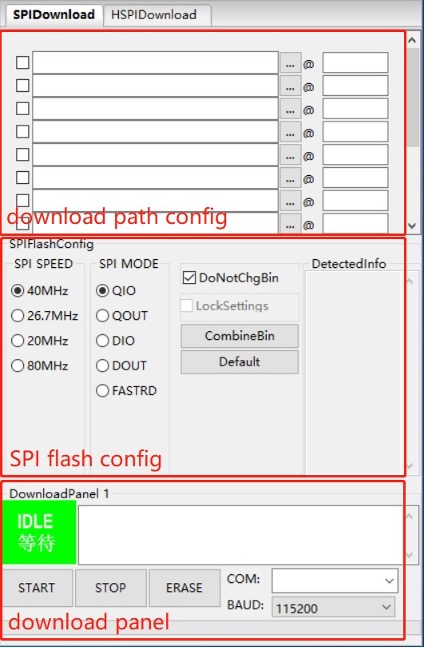
SPIDownload Tab
Note
When the tool version is >= 3.9.10,
SPI SPEEDandSPI MODEcannot be changed by default. These parameters are consistent with the firmware build configuration.
HSPIDownload Tab
The SPIDownload tab is needed when ESP8266 connects to external flash via HSPI. It has the same interface as the HSPIDownload tab, please refer to SPIDownload Tab for interface description.
FactoryMultiDownload Tab
Factorymode uses the relative path. By default, the tool loads the firmware from the bin folder of the tool directory. Whereas,Developmode uses the absolute path. The advantage of theFactorymode is that as long as the firmware to flash remains in the bin folder of the tool directory, path problems will not occur when the tool package is copied to other factory computers.In
Factorymode, the tool enablesLockSettingsby default. WhenLockSettingsis enabled, firmware download path config andSPI flash configcannot be configured. This is to prevent production line workers from accidentally clicking and causing errors. (When factory managers need to configure these settings, they can clickLockSettingsto unlock.)In
Factorymode, you can click theCRC32 calbutton to generate a checksum based on all files to be flashed and their flash addresses. The production line can use this checksum to verify that the files and configuration to be flashed are correct.
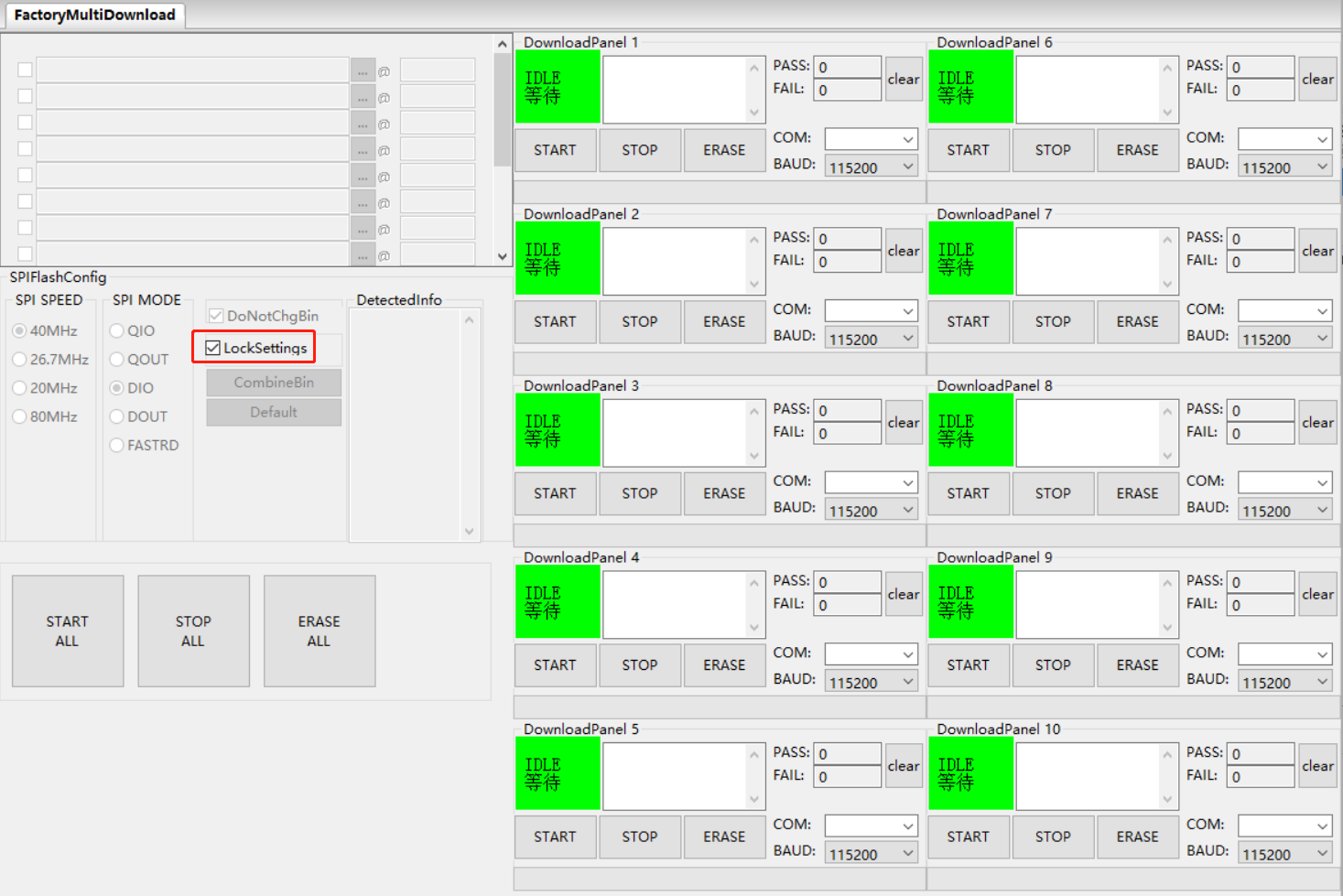
FactoryMultiDownload Tab
The download path config and SPI flash config section on the FactoryMultiDownload Tab are basically the same as those on the SPIDownload tab. Please refer to SPIDownload Tab for descriptions. Do not forget to configure the serial port number and baud rate of each download panel.
chipInfoDump Tab
Device: Selects the device’s serial port number and communication baud rate.Read Flash: Specifies the start address and size of the content to be read from the flash. This setting is only required when reading flash.
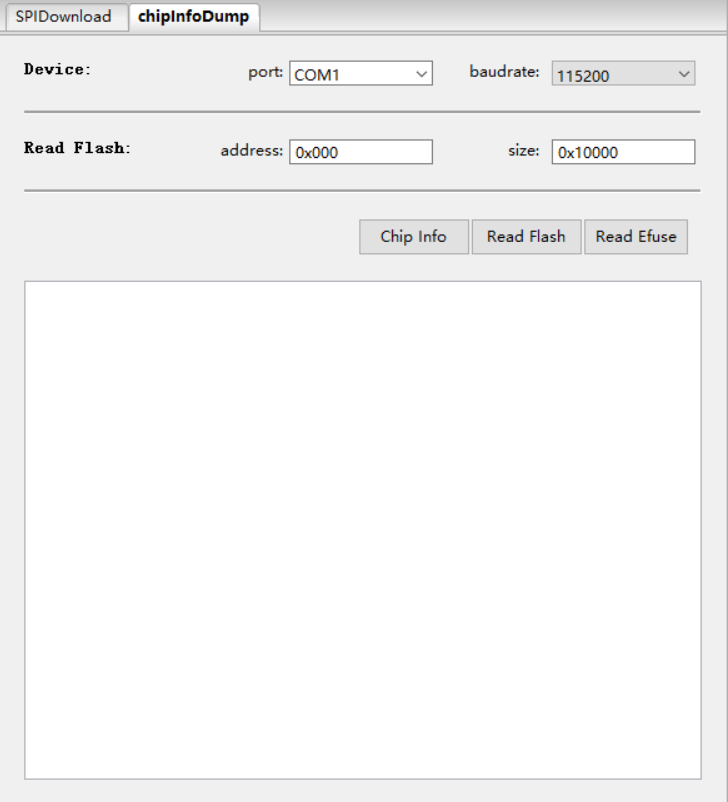
chipInfoDump Tab
Function Description
Chip Info: Reads the chip model, flash ID, and flash status register values. The read content is displayed directly in the tab.Read Flash: Reads data stored in the flash. The read content is saved in a generated bin file, which is named in the format “Chip MAC + Start Address of Reading + Data Length of Reading + Reading Time”.Read Efuse: Reads the chip’s eFuse content, with functionality identical to esptool summary. The read content is stored in a generated text file, named in the format “Chip MAC + Reading Time”.
Note
To use the above reading functions, the product should enter download mode after startup.
Tool version >= 3.9.8
Download Example
This section takes the ESP32 series as an example to demonstrate how to perform both regular and encrypted download operations. At present, ESP8266 only supports regular download.
Regular Download
Pull GPIO0 low to enter the download mode.
Open the download tool, set
ChipTypetoESP32,WorkModetoDevelop, andLoadModetoUARTas shown in the figure below. Then, clickOK
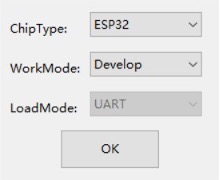
Selecting Device — ESP32 Download Tool
In the appeared download page, enter the path to the bin file and the address where it should be downloaded, check the box before the path, and enter
COMandBAUDaccording to your requirements.Click
STARTto start downloading. During the download process, the tool will read the flash information and the chip’s MAC address.After the download is complete, the tool interface is shown in the following figure.
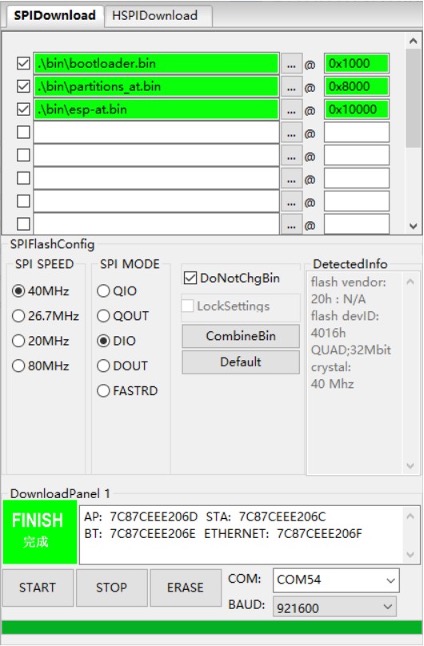
Download Completed
Version Release Notes
3.9.11
Support ESP32-P4 ECO7 (rev 3.2)
Support ESP32-S31
3.9.10
Support ESP32-P4 ECO6
Support ESP32-C5 ECO3
SPI_MODEandSPI_SPEEDare not editableSupport CRC32 check for files to be flashed and flash addresses in factory mode
Support ESP32-C5 secure boot V2 and flash encryption
Support ESP32, ESP32-S2, and ESP32-S3 eFuse flash_voltage configuration
3.9.9
Support ESP32-P4 USB download
Add a help button for tool updates and online documentation
Supports flashing ESP32-P4 devices with flash larger than 16 MB
Add MD5 verification status display during flashing
3.9.8
Add
Read FlashandRead EfusetabsSupport ESP32-C5 and ESP32-C61
3.9.7
Support ESP32-P4
Update UI display icons
Fix icon stuttering during flashing after long-term use
3.9.6
Support secure boot V2 and flash encryption for ESP32, ESP32-H2, ESP32-C6, ESP32-C2, and ESP32-S2
In factory mode, the number of products to be flashed is configurable, up to 20
3.9.5
Support ESP32-H2
Support disabling the erase button
Fix some known vulnerabilities
3.9.4
Support ESP32-C6
Support ESP32-C3 and ESP32-S3 flash encryption
Add XMC flash fix
Support flashing count in factory mode
3.9.3
Support ESP32-C2
Update the icon shown when flashing completes
3.9.2
Fix configuration file errors
Update the auto-start process