Get Started
This document is intended to help you set up the software development environment for the hardware based on the ESP32-H2 chip by Espressif. After that, a simple example will show you how to use ESP-IDF (Espressif IoT Development Framework) for menu configuration, then for building and flashing firmware onto an ESP32-H2 board.
Note
This is documentation for the master branch (latest version) of ESP-IDF. This version is under continual development. Stable version documentation is available, as well as other ESP-IDF Versions.
Introduction
ESP32-H2 is a system on a chip that integrates the following features:
Bluetooth Low Energy
802.15.4 Thread/Zigbee
High performance 32-bit RISC-V single-core processor
Multiple peripherals
Built-in security hardware
Powered by 40 nm technology, ESP32-H2 offers excellent power efficiency, RF performance, security, and reliability, making it suitable for a wide range of application scenarios and power consumption requirements.
Espressif provides basic hardware and software resources to help application developers realize their ideas using the ESP32-H2 series hardware. The software development framework by Espressif is intended for development of Internet-of-Things (IoT) applications with Wi-Fi, Bluetooth, power management and several other system features.
What You Need
Hardware
An ESP32-H2 board.
USB cable - USB A / micro USB B.
Computer running Windows, Linux, or macOS.
Note
Currently, some of the development boards are using USB Type C connectors. Be sure you have the correct cable to connect your board!
If you have one of ESP32-H2 official development boards listed below, you can click on the link to learn more about the hardware.
Software
To start using ESP-IDF on ESP32-H2, you need the following software:
Toolchain to compile code for ESP32-H2
Build tools - CMake and Ninja to build a full Application for ESP32-H2
ESP-IDF that essentially contains API (software libraries and source code) for ESP32-H2 and scripts to operate the Toolchain
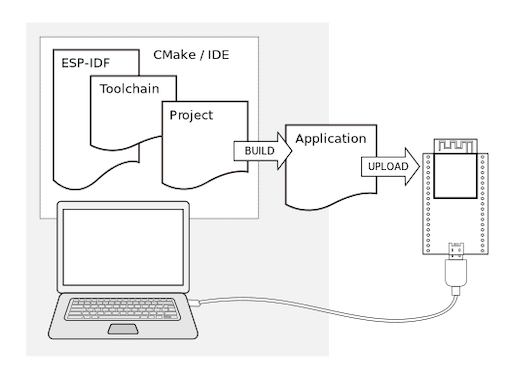
Workflow Overview
Getting started with ESP-IDF involves two main phases:
Setup — installing prerequisites and ESP-IDF (see Installation)
Develop — creating, configuring, building, flashing, and monitoring your project (see Build Your First Project)
If you are unsure where to start, see Workflow Overview for a visual overview of the full workflow.
Installation
To install ESP-IDF, build tools, and the toolchain, use the ESP-IDF Installation Manager (EIM) available for multiple operating systems.
The EIM provides two installation options:
Graphical User Interface (GUI): Offers a user-friendly interface, ideal for most users.
Command Line Interface (CLI): Suitable for CI/CD pipelines and automated installations.
Build Your First Project
Once you have the ESP-IDF installed, you can build your first project either using an IDE or from the command line.
Build in IDE
The ESP-IDF versions installed through EIM can be used in the following IDEs, providing a graphical development experience:
Espressif-IDE based on Eclipse CDT
It includes IDF Eclipse plugins, essential Eclipse CDT plugins, and other third-party plugins from the Eclipse platform to support building ESP-IDF applications.
Visual Studio Code integrated with the ESP-IDF Extension for VS Code
It allows you to develop, build, flash, and monitor ESP-IDF applications directly within the Visual Studio Code.
For instructions on how to set up and use these IDEs with ESP-IDF, please refer to their respective documentation linked above.
Build from Command Line
To start a new project, build it, flash to ESP32-H2, and monitor the device output from the command line, follow instructions for your operating system:
Note
If you have not yet installed ESP-IDF, please go to Installation and follow the instructions there to install all required software before proceeding.
Uninstall ESP-IDF
To uninstall ESP-IDF and related tools installed via EIM, you can use either the graphical user interface (GUI) or the command line interface (CLI).