ESP32
Note
This document is automatically translated using AI. Please excuse any detailed errors. The official English version is still in progress.
ESP32 Chip/Module Startup Conditions
The operating voltage range of the ESP32 chip is
2.3 V ~ 3.6 V; when using a single power supply, it is recommended that the power supply voltage is3.3 V, and the output current needs to reach500 mAor more.The operating voltage range of the ESP32 module is
3.0 V ~ 3.6 V; when using a single power supply, it is recommended that the power supply voltage is3.3 V, and the output current needs to reach500 mAor more.The CHIP_PU (EN) pin of the ESP32 is the chip’s boot pin. When CHIP_PU (EN) is at a high level, the chip is enabled; at a low level, the chip is turned off. Note: The CHIP_PU pin must not be left floating. When the ESP32 is powered by a 3.3V system power supply, the CHIP_PU (EN) pin must be at a high level.
Hardware Wiring
By default, ESP32 downloads firmware via UART0 (i.e., TXD0 (GPIO1) and RXD0 (GPIO3)).
When downloading firmware based on the ESP32 module, users need to prepare:
3.3V Power Supply
Serial Debugging Tool
Dupont wire
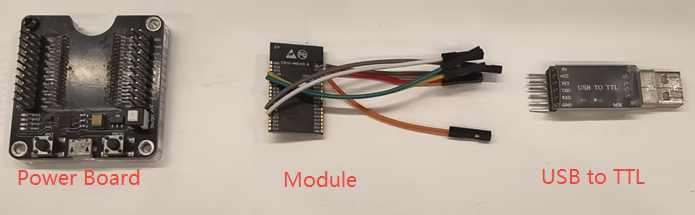
Proceed with the wiring as follows to meet the hardware requirements for chip power supply, power-on startup, and entering download mode.
ESP32 |
3.3V External Power Supply |
Serial debugging tool |
|---|---|---|
3V3 |
VDD |
|
GND |
GND |
GND |
EN |
VDD |
|
GPIO0 (Pull down, default Pull up) |
GND |
|
GPIO2 (Pull down, default Pull down) |
GND |
|
TXD0(GPIO1) |
RXD |
|
RXD0(GPIO3) |
TXD |
Note
The Strapping pin
GPIO12 (MTDI)is used for selecting the VDD_SPI Flash voltage. - When use the1.8VVDD_SPI Flash , theGPIO12 (MTDI)need pull up when chip power on. - When use the3.3VVDD_SPI Flash , theGPIO12 (MTDI)need pull down when chip power on.
Chip Power-On Startup Log
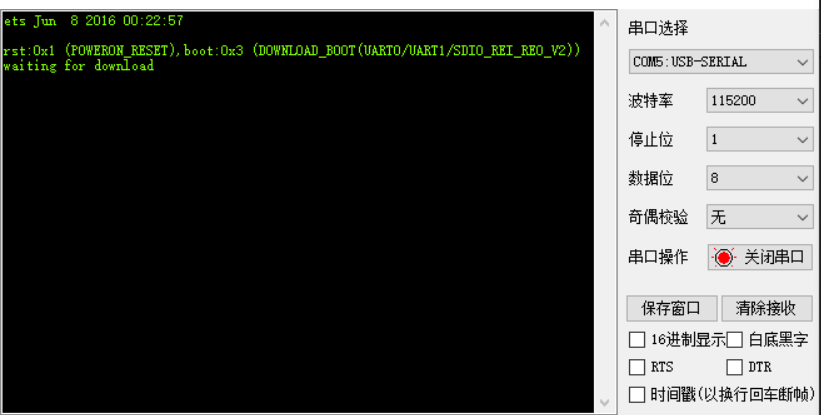
After powering on the ESP32 chip/module, you can use the PC-side serial debugging software (such as XCOM) to view the UART0 serial output when the chip is powered on to confirm whether the chip has entered download mode. If the chip enters download mode upon power-up, UART0 will print the following log:
ets Jun  8 2016 00:22:57

rst:0x1 (POWERON_RESET),boot:0x3 (DOWNLOAD_BOOT(UART0/UART1/SDIO_REI_REO_V2))
waiting for download
Note
After powering on the ESP32 chip/module, if you do not see the log printing, you can trigger the log printing by pulling down and then pulling up the CHIP_PU (EN) pin for a hardware reset restart.
In addition, you can get the Strapping pins level state at power-on from the chip power-on startup log. For detailed instructions, please refer to ESP32 Boot Log instructions.
When testing with the ESP32 Development Board, you can directly use a USB Type-C cable to connect to the UART interface on the development board for firmware download. You can also manually pull down the GPIO0 pin, that is, hold down the Boot button and then power on, to manually enter the download mode.
In terms of software, Espressif provides a PC-based Flash download tool, which can directly download firmware (.bin) into Flash. For usage instructions, refer to the Flash Download Tool User Guide.
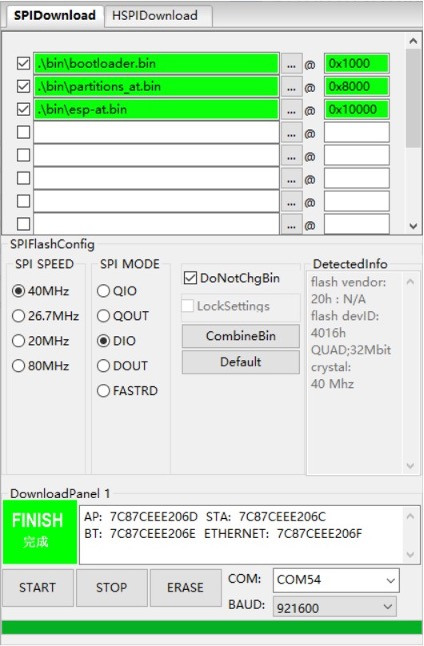
After the firmware download is complete, if you want to run the burned firmware, you can pull up GPIO0 (default pull-up) based on the aforementioned hardware wiring, and then pull down and pull up the CHIP_PU (EN) pin for a hardware reset and restart, allowing the chip to re-enter the Flash boot mode. Finally, use the serial debugging software to view the UART0 log printout to check the firmware running status.
Reference
Hardware wiring principle summary:
Official Documentation: