Migration walkthrough
Open an existing ESP-IDF project in the ESP-IDF VS Code Extension and validate the same workflows you used in Espressif-IDE. See Migrating from Espressif-IDE to the ESP-IDF VS Code Extension for what is reused automatically and what still needs manual setup.
1. Open the existing project
In VS Code, use File → Open Folder… and select the root directory of your existing ESP-IDF project.
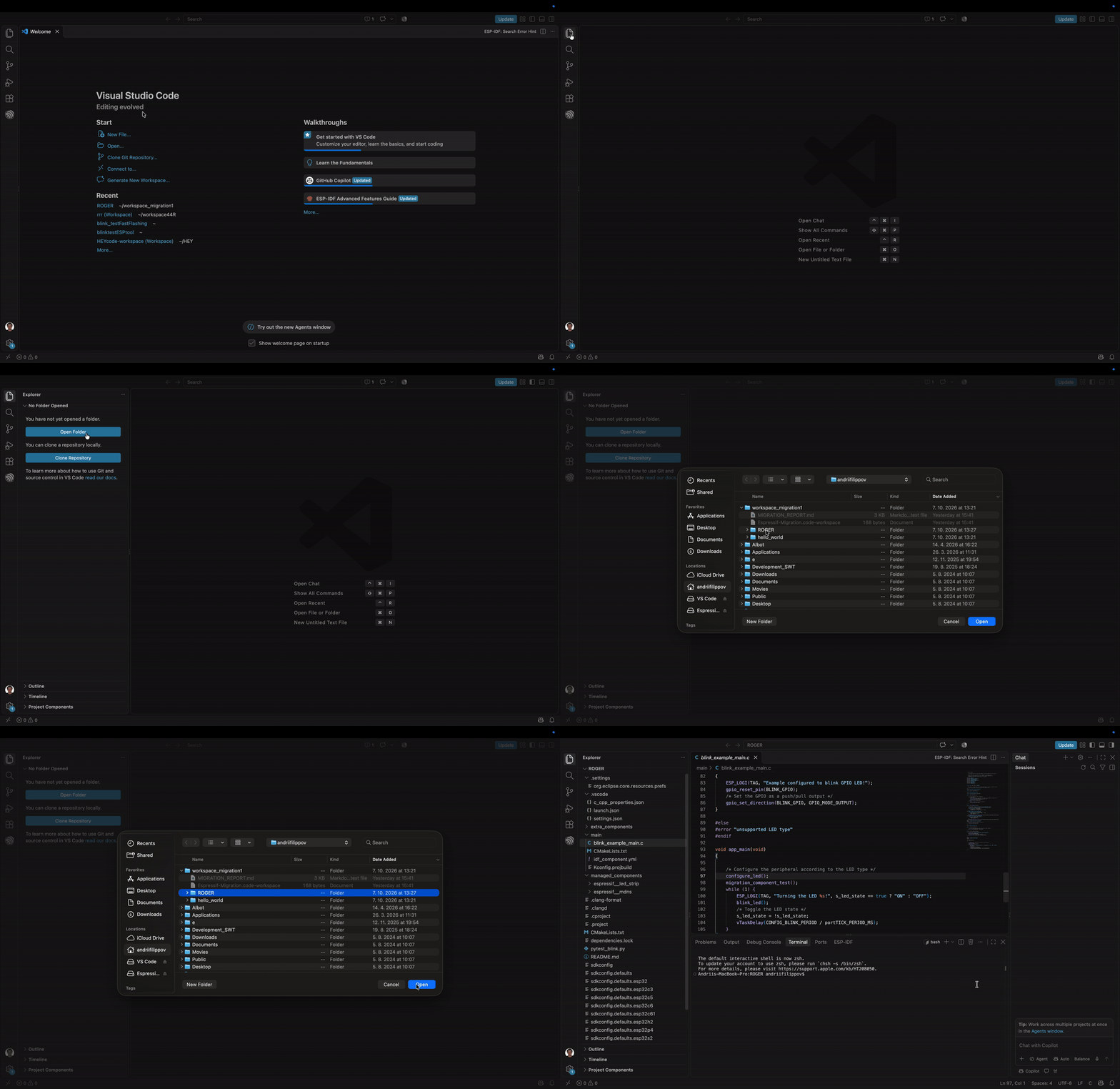
You do not need to create a new VS Code project or copy your source files into a new template.
After opening the folder, verify that the project still contains its normal ESP-IDF files, for example:
project/
├── CMakeLists.txt
├── main/
├── sdkconfig
├── sdkconfig.defaults
├── dependencies.lock
├── managed_components/
└── ...
2. Verify the ESP-IDF setup
Make sure VS Code is using the ESP-IDF installation/version expected by the project.
If you already have the required ESP-IDF version installed, select that existing setup in the ESP-IDF extension rather than reinstalling the framework.
Tip
Using the same ESP-IDF version first makes migration easier to validate. Upgrade the project separately after the IDE migration is complete.
3. Select the target and board
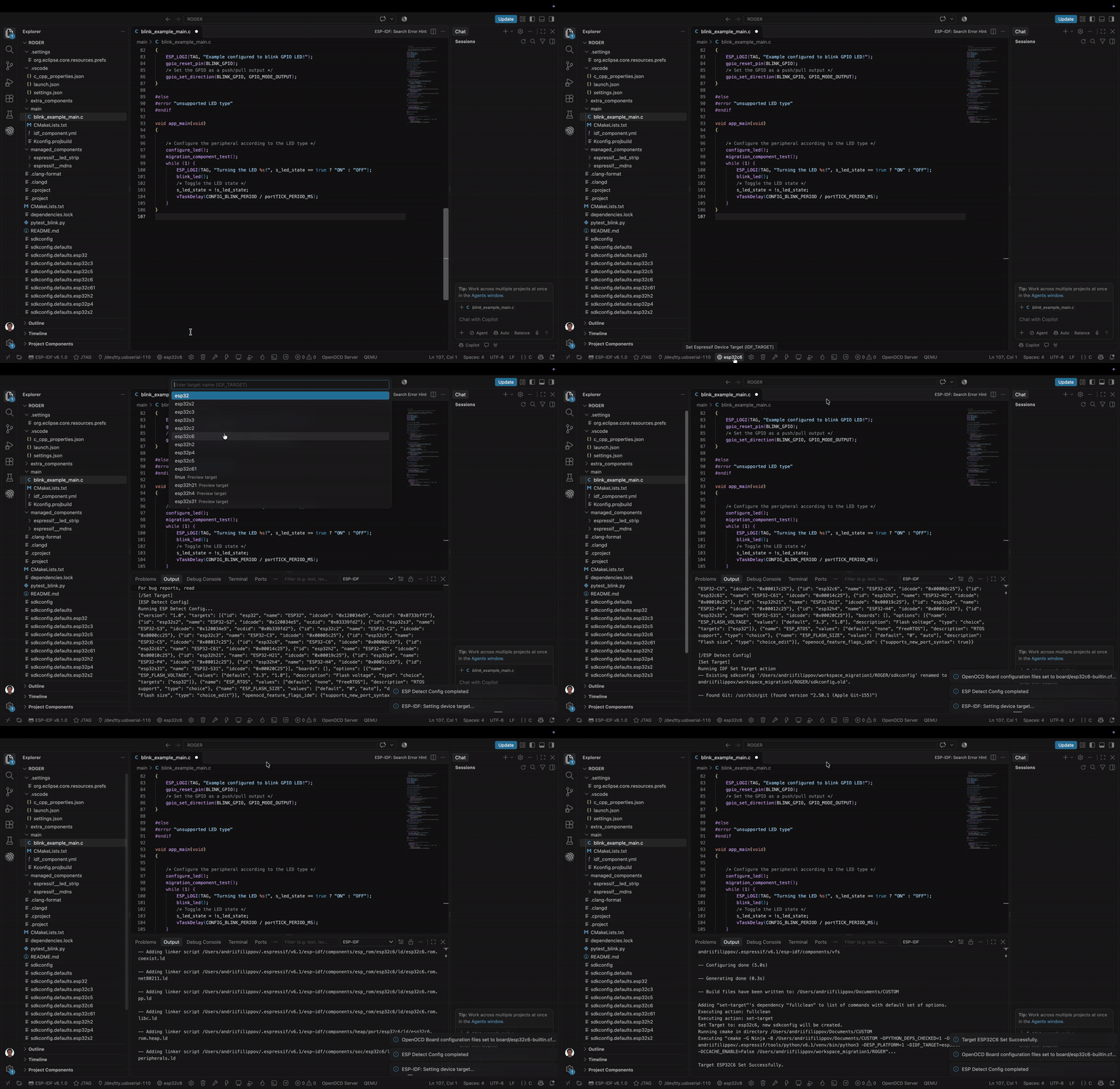
Select the ESP-IDF target used by the project and, when applicable, the exact board/device configuration.
Important
For JTAG users, explicitly select the board/device even if the chip target already appears correct. A correct IDF_TARGET does not necessarily mean the corresponding OpenOCD board configuration has been initialized.
For example, a project may correctly report esp32c6 while VS Code still has an unrelated OpenOCD configuration from an older project. Re-selecting the target/board refreshes the project-specific hardware configuration.
4. Select the flash method
Choose the flash method that matches your existing workflow.
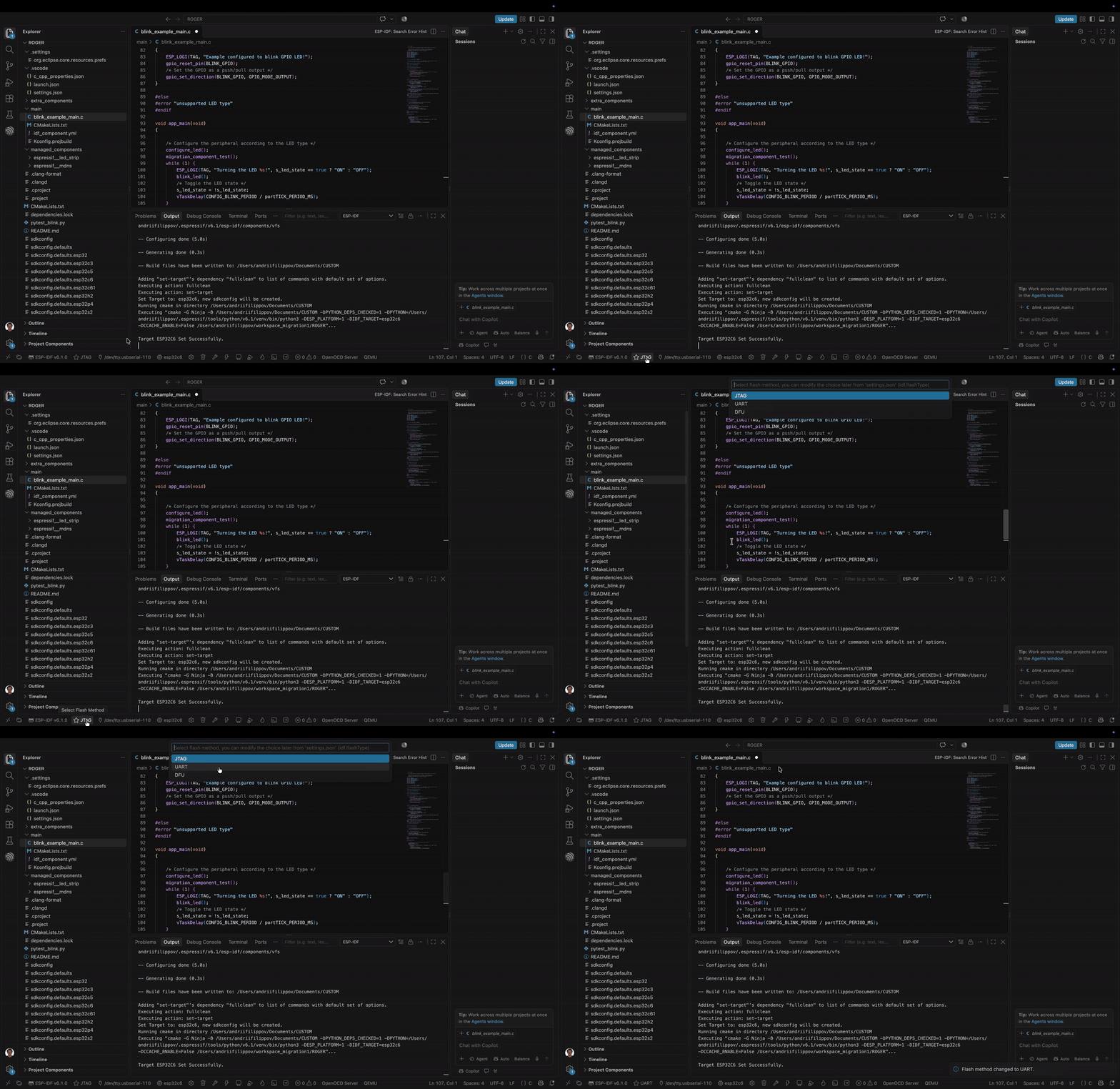
Typical choices are:
UART for serial flashing
JTAG when flashing through OpenOCD/JTAG
If you are migrating a JTAG-based workflow, verify this setting before troubleshooting OpenOCD or Debug.
5. Select the serial port
For UART flashing and Serial Monitor, select the device port.
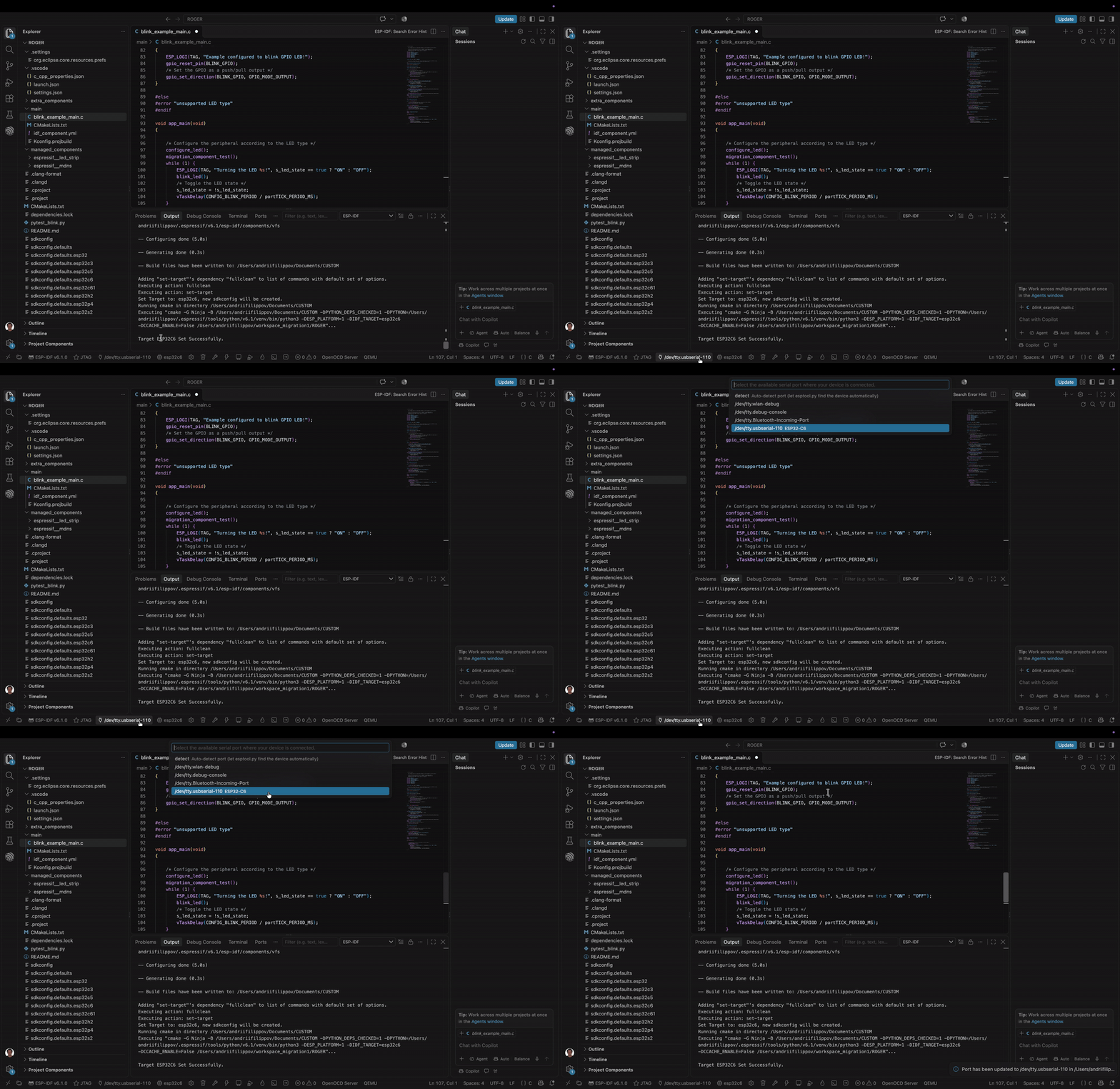
The exact port name is platform-dependent, for example:
macOS:   /dev/tty.usbserial-...
Linux:   /dev/ttyUSB0 or /dev/ttyACM0
Windows: COM3, COM4, ...
6. Run Full Clean only if needed
Do not clean the project automatically unless it is necessary. First try to use the existing project normally.
If Menuconfig or project configuration fails because of stale or environment-specific build cache, run:
ESP-IDF: Full Clean
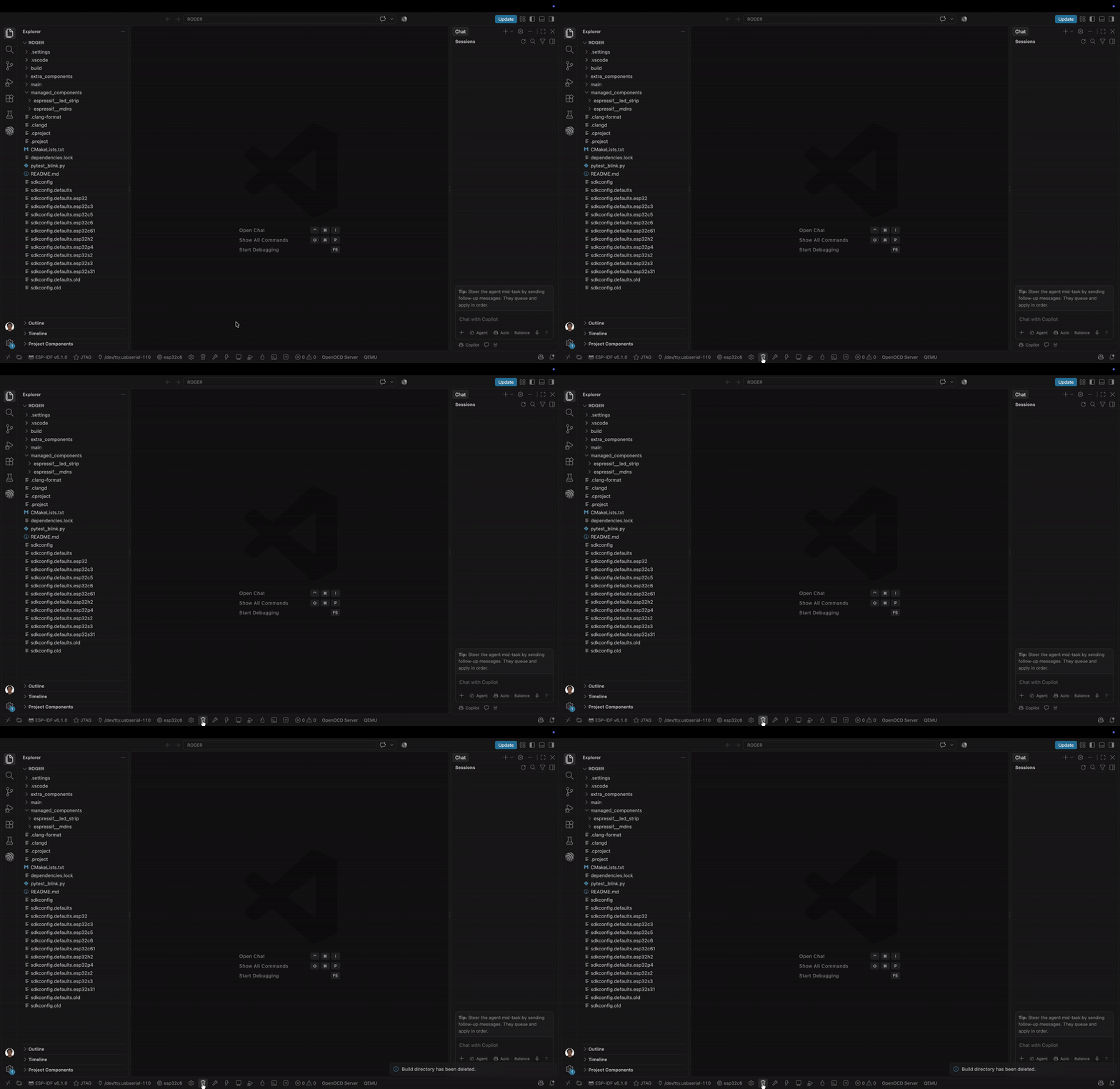
Note
A full project Build is not required just to recover Menuconfig. Full Clean followed by reopening the SDK Configuration Editor can be enough.
7. Build the project
Run:
ESP-IDF: Build your project
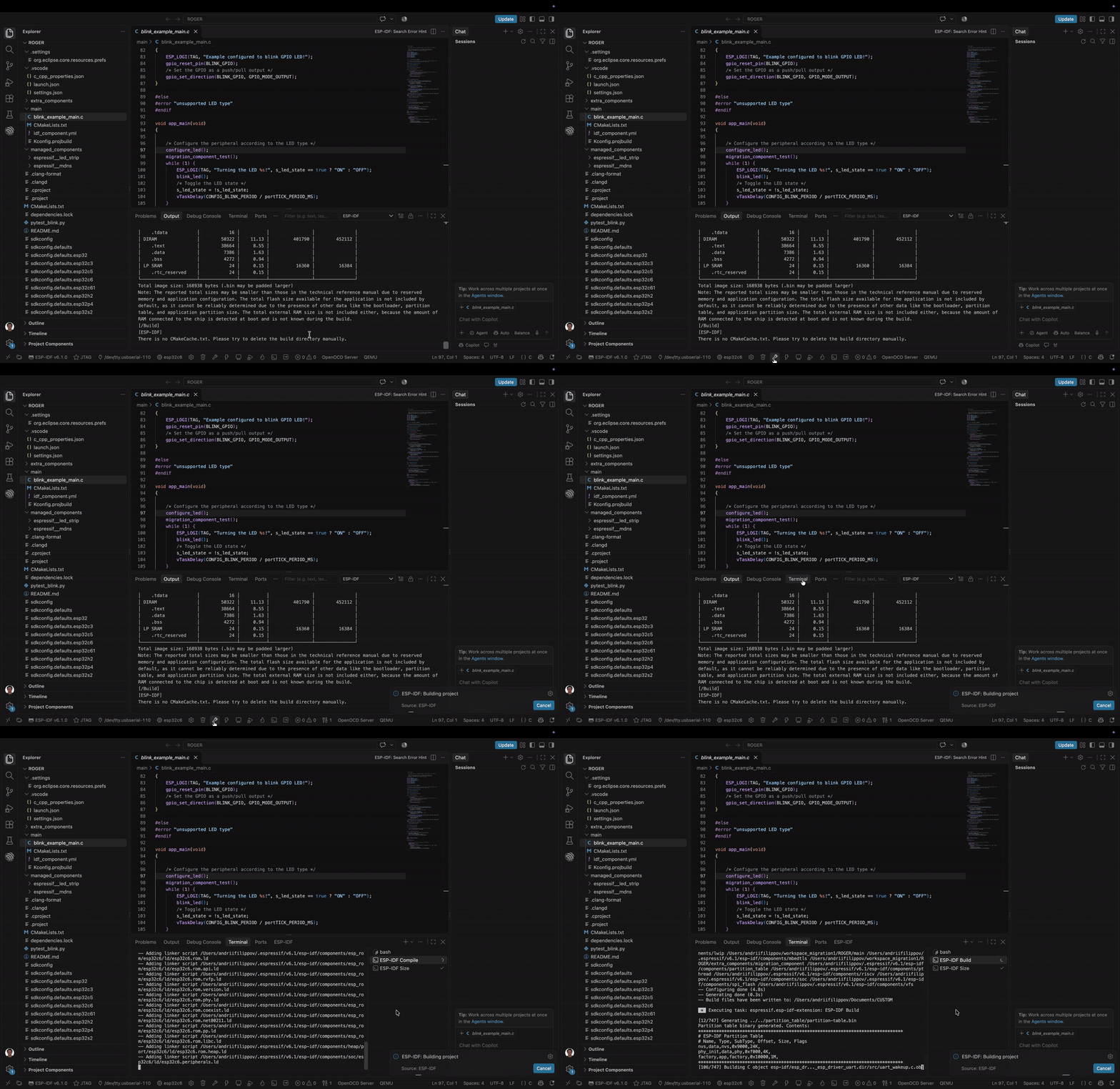
The following project-level state should continue to work without IDE-specific conversion:
custom CMake configuration
sdkconfigsdkconfig.defaults*managed components
local/custom components
dependency lock files
If Build succeeds, this is a strong indication that the ESP-IDF project itself migrated correctly.
8. Open SDK Configuration Editor / Menuconfig
Run:
ESP-IDF: SDK Configuration Editor (Menuconfig)
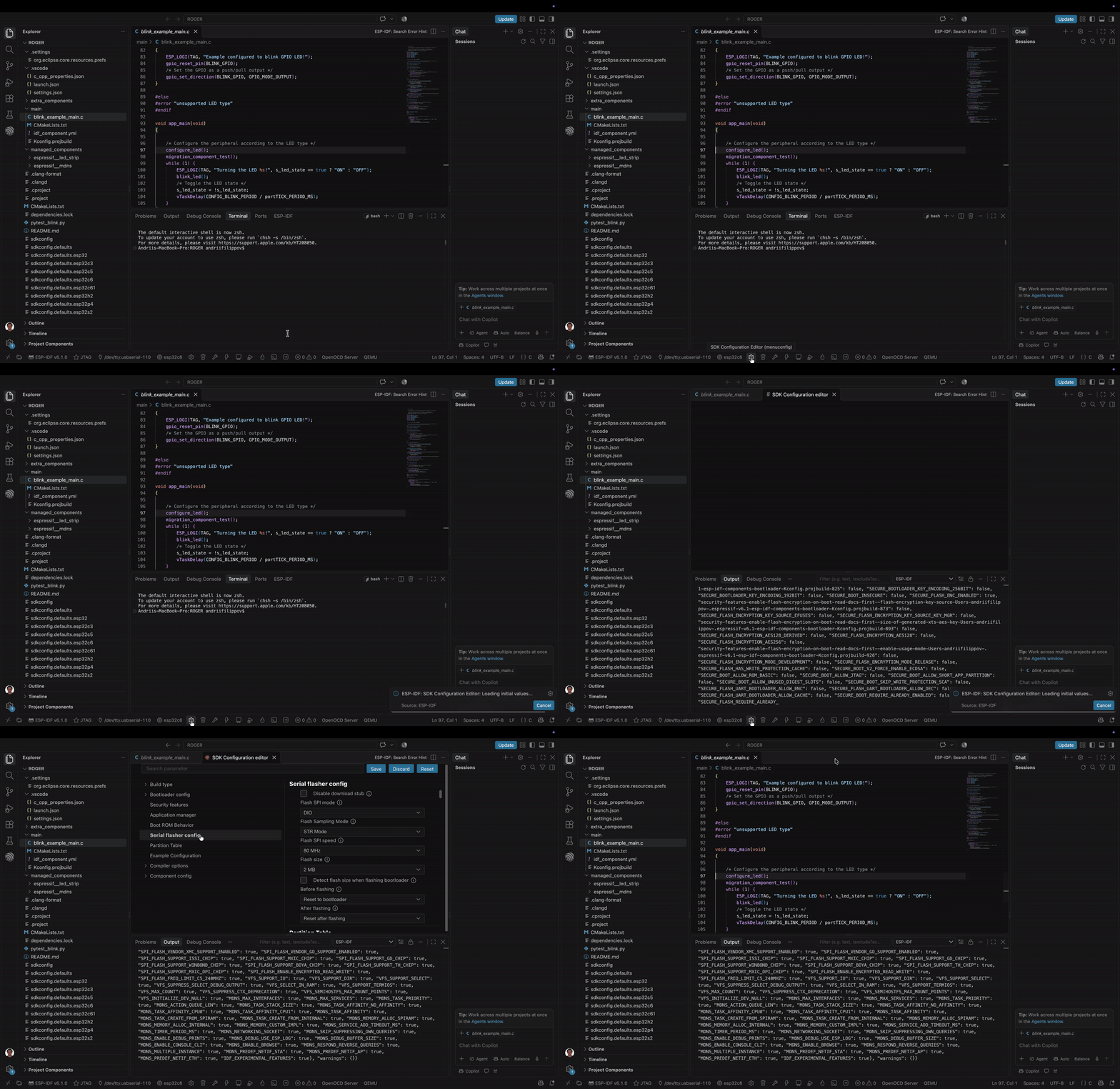
Verify that important existing values are still present.
Examples include:
target-specific configuration
flash size
partition table selection
compiler optimization
application-specific Kconfig values
If the editor reports that the project must be cleaned because of an incompatible build cache, return to 6. Run Full Clean only if needed.
9. Validate Flash
After the project builds successfully, validate the hardware workflows you normally use.
If Flash is part of your workflow, make sure the target, flash method, and port/board are correct, then run:
ESP-IDF: Flash your project
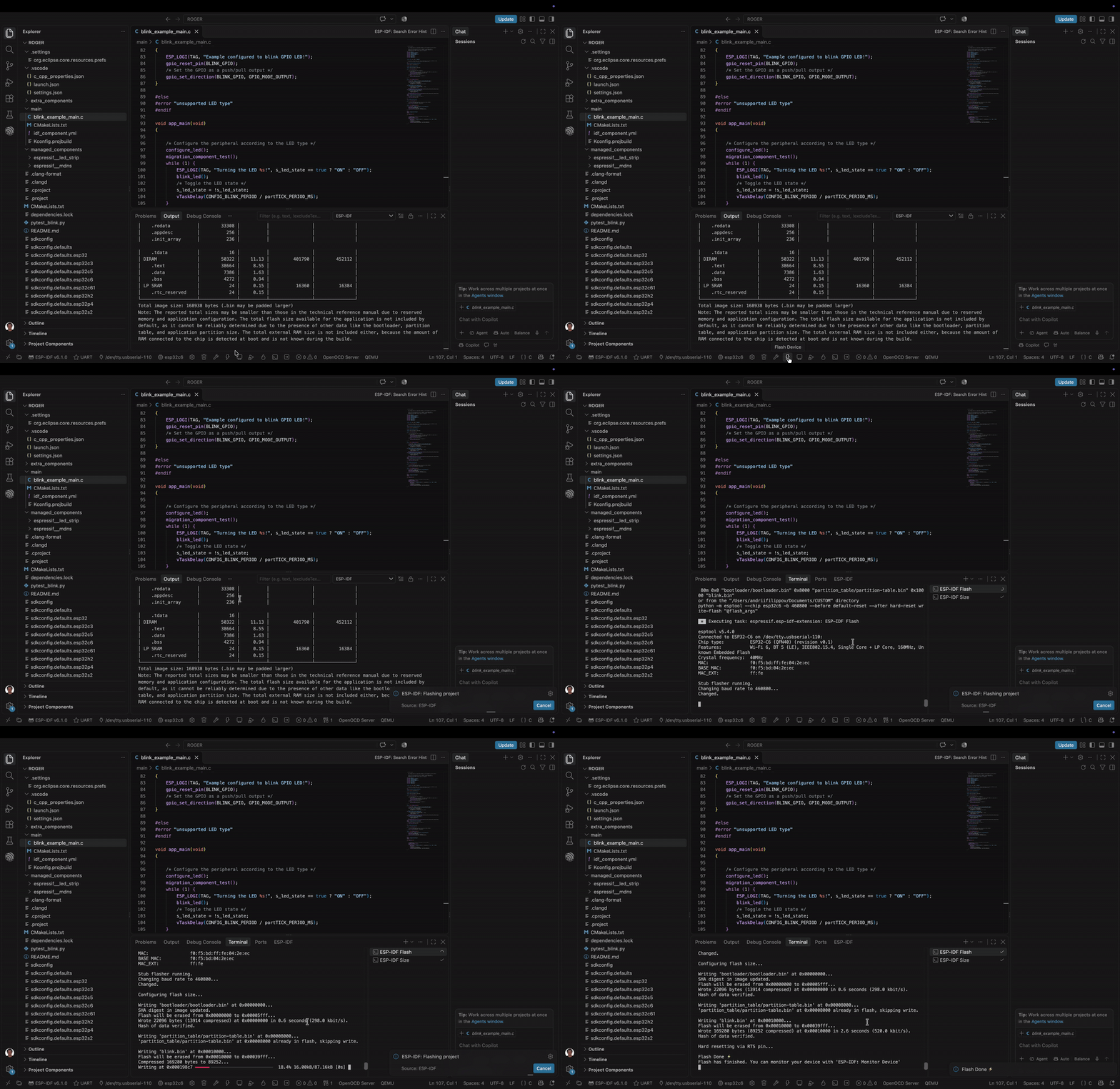
UART users
UART flashing normally works once the correct serial port and target are configured.
JTAG users
If JTAG Flash fails with an OpenOCD adapter/device error:
Re-select the target and exact board/device configuration.
Confirm the flash method is JTAG.
Verify the intended adapter when multiple devices are connected.
10. Validate Serial Monitor
If Serial Monitor is part of your workflow, run:
ESP-IDF: Monitor your device
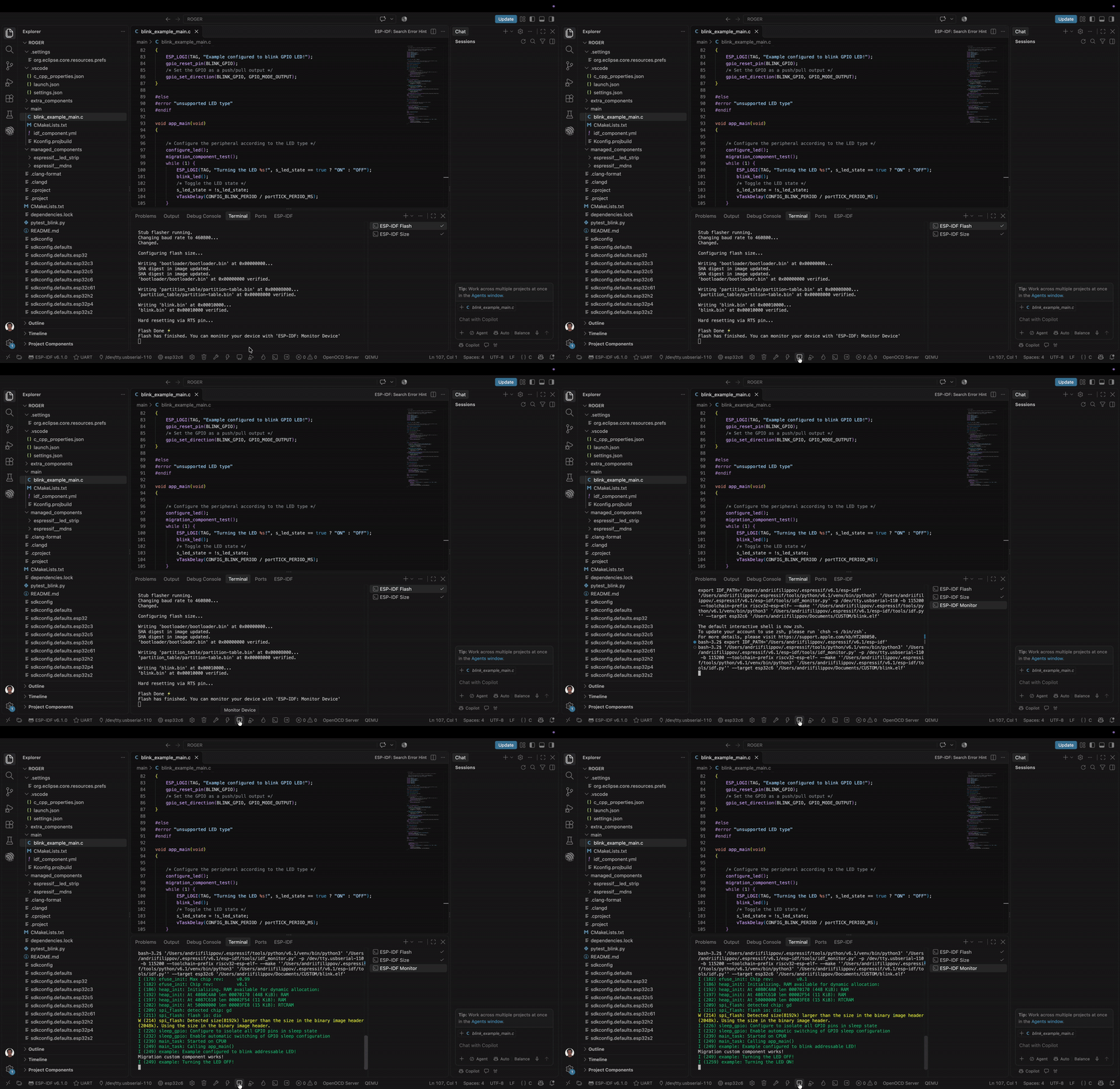
Verify normal application output and confirm that the expected firmware is running.
This is also a convenient point to validate custom/local components because their runtime output can confirm that they were compiled, linked, flashed, and executed correctly.
11. Configure and validate Debug
Existing Espressif-IDE projects do not necessarily contain a VS Code debug configuration.
If .vscode/launch.json is missing, run:
ESP-IDF: Add VS Code Configuration Folder
Then start Debug from the VS Code Run and Debug view.
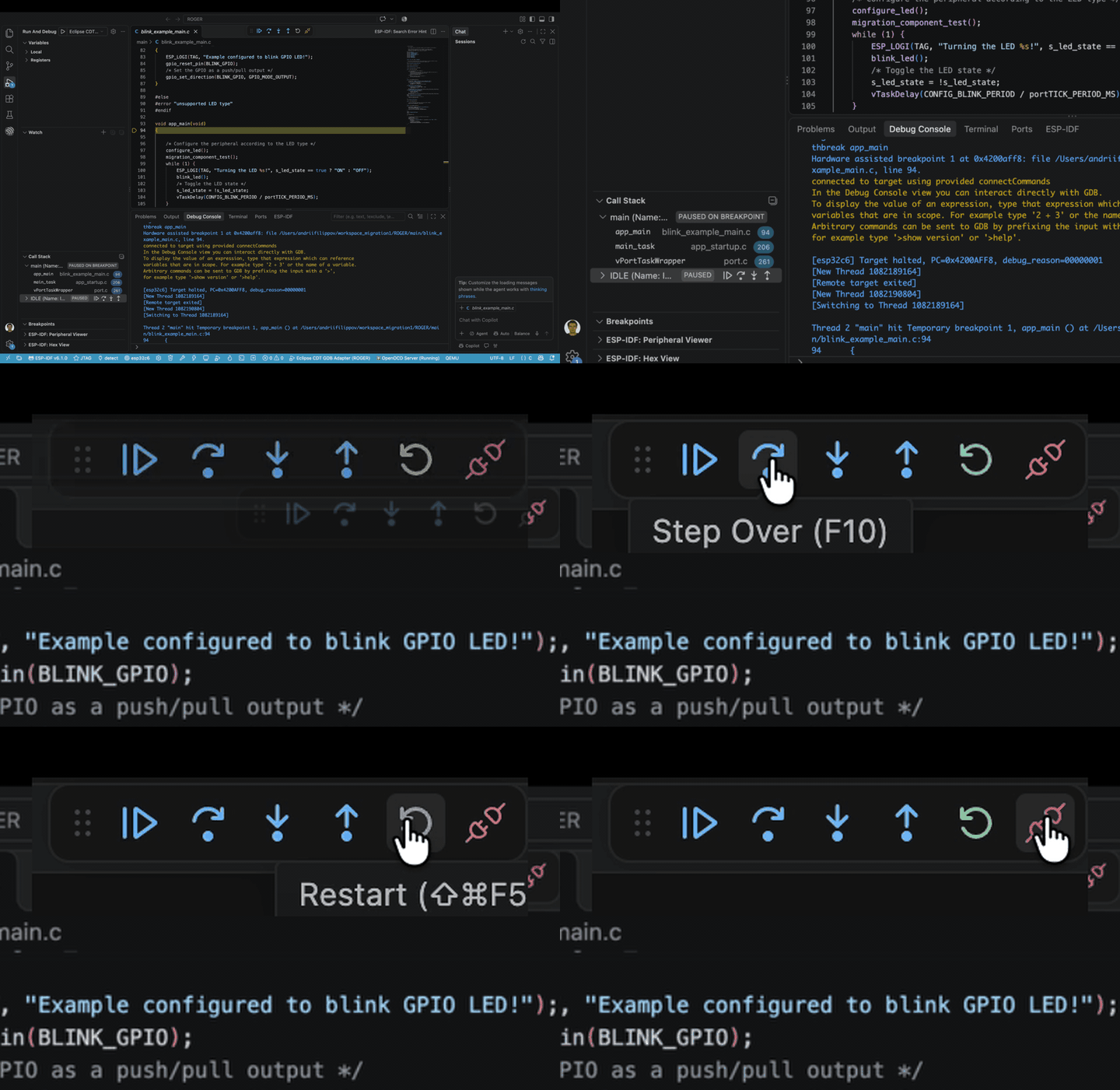
Default debugging works after the VS Code configuration folder is generated.
Warning
Add VS Code Configuration Folder creates VS Code defaults. It does not convert your existing Eclipse .launch file. If your Eclipse debug setup contained custom ports, semihosting, reset behavior, custom GDB commands, or other non-default settings, review them manually after default Debug is working.