USB Signal Quality Test
Signal quality testing of the USB 2.0 interface is an important step in ensuring that USB 2.0 devices comply with the specification and qualify for the USB 2.0 certification logo. Signal quality testing mainly covers eye diagram testing, signaling rate, End-of-Packet (EOP) bit width, crossover voltage range, JK jitter, KJ jitter, consecutive jitter, rise time, and fall time. Among these, eye diagram testing is one of the most fundamental and critical test items in serial data applications.
Test Overview
Eye Diagram Templates
The eye diagram test results for USB 2.0 High-Speed signals must meet the standard eye diagram template requirements defined by USB-IF.
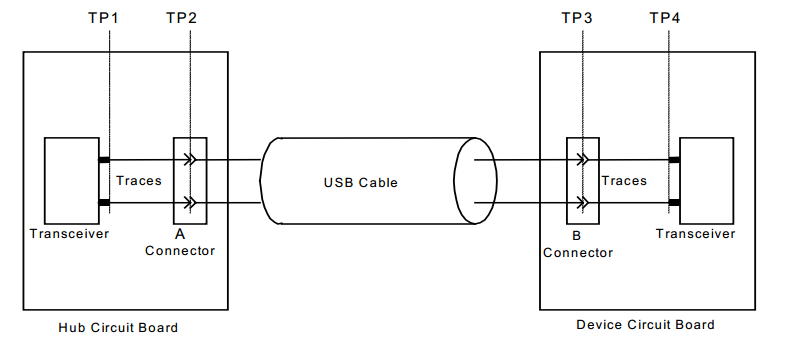
USB 2.0 High-Speed signal measurement planes
The eye diagram test results for USB 2.0 High-Speed signals must comply with the eye diagram templates in the USB 2.0 specification:
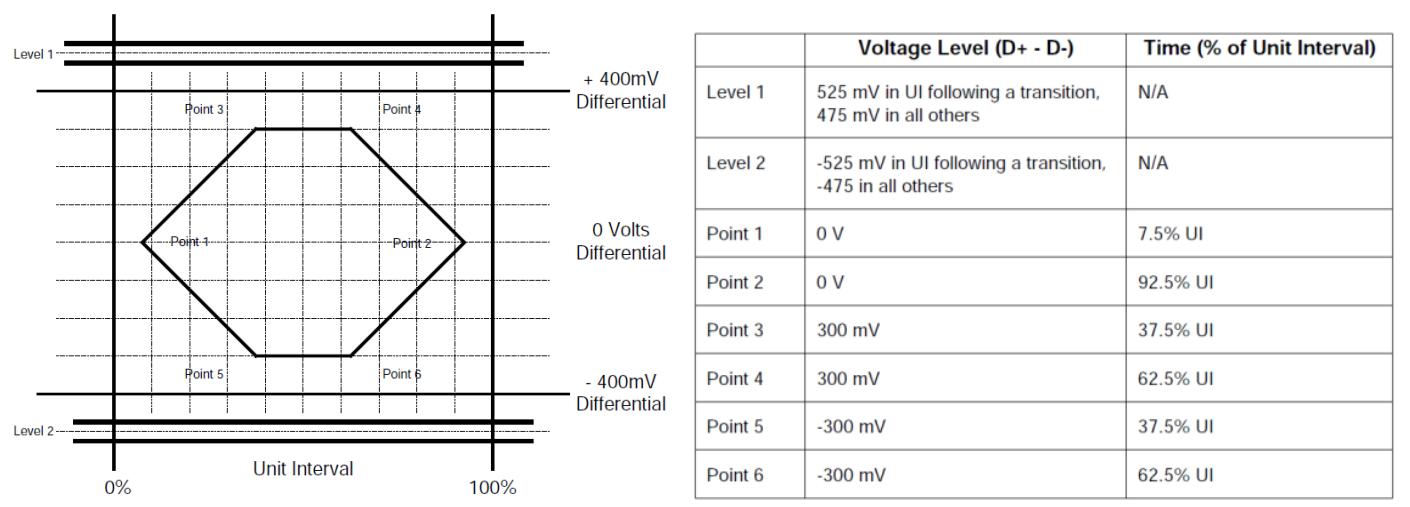
Transmit waveform requirements for hubs measured at TP2 and devices without captive cables measured at TP3
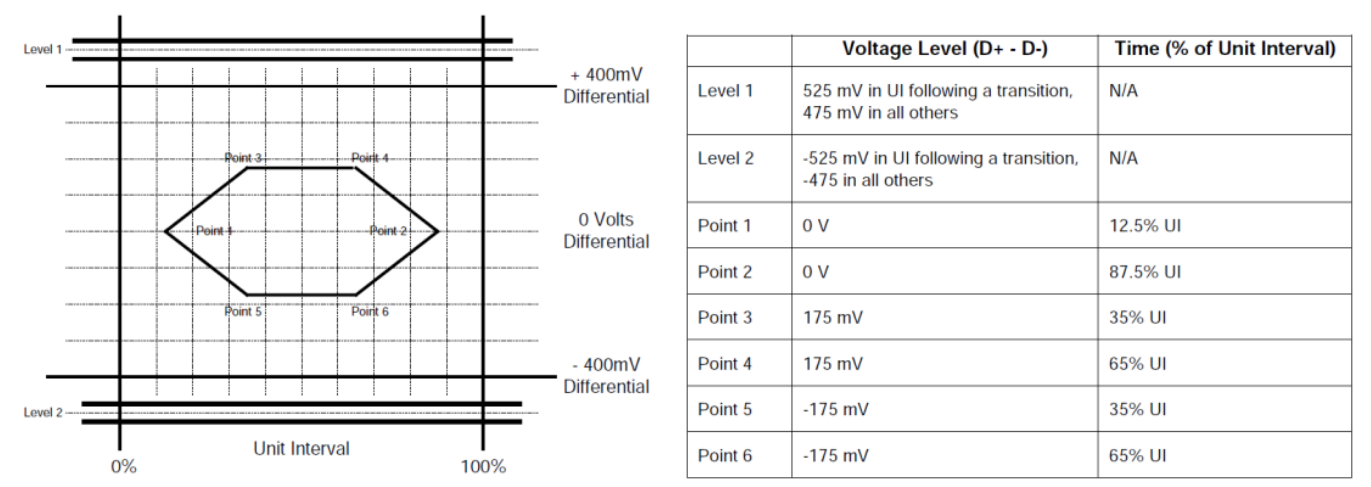
Transmit waveform requirements for devices with captive cables measured at TP2
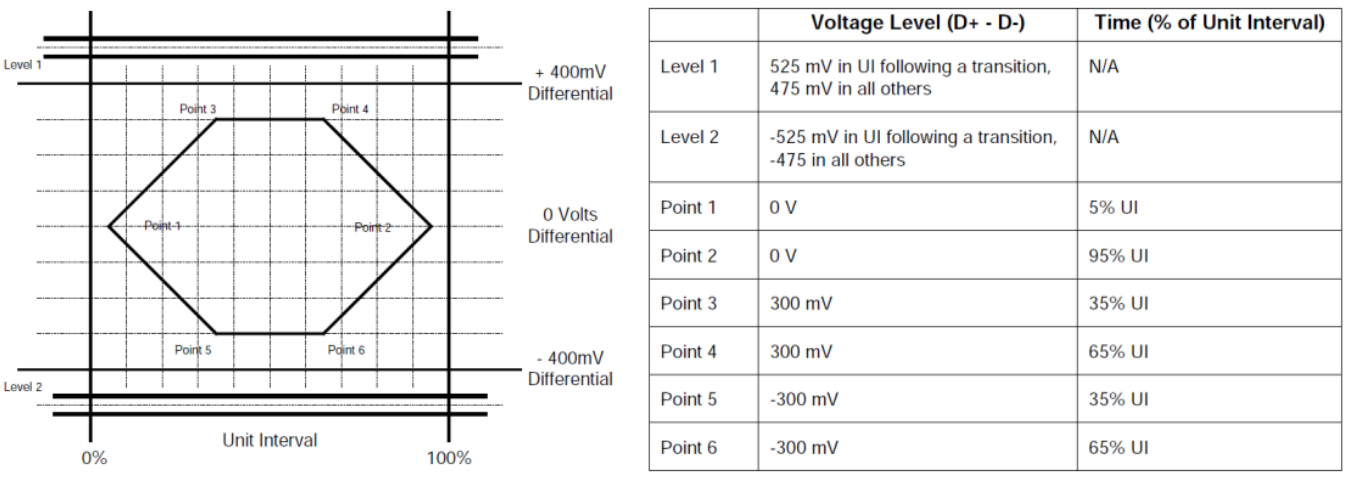
Transmit waveform requirements for hub transceivers measured at TP1 and device transceivers measured at TP4
Required Materials
A USB test fixture matching the USB mode and speed under test, available from the instrument vendor or a USB-IF-recommended test lab
Oscilloscope (> 2 GHz), compliance test software, probes, etc.
Oscilloscope Eye Diagram Test
USB 2.0 compliance analysis software analyzes the standard signals transmitted by the interface and generates an eye diagram. The operation of compliance test software varies between oscilloscope vendors. Refer to the oscilloscope vendor’s instructions to perform the eye diagram test.
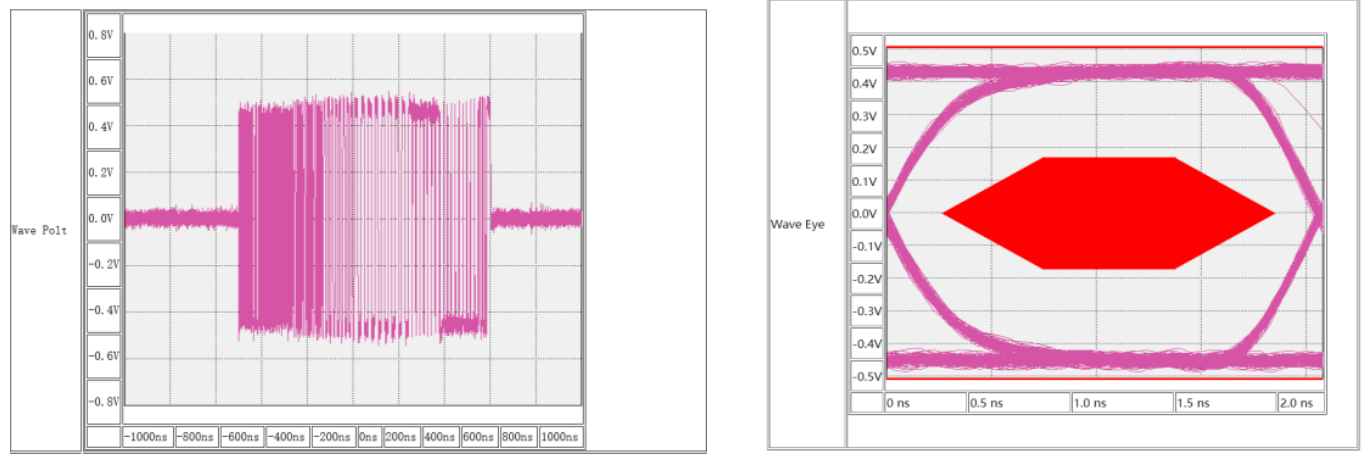
Oscilloscope eye diagram test
In USB 2.0 eye diagram testing, a wider eye opening indicates better signal quality. The test results must remain entirely within the passing region of the eye diagram template. Any waveform touching or crossing the template boundary indicates that the signal quality does not meet the requirements.
USB 2.0 High-Speed
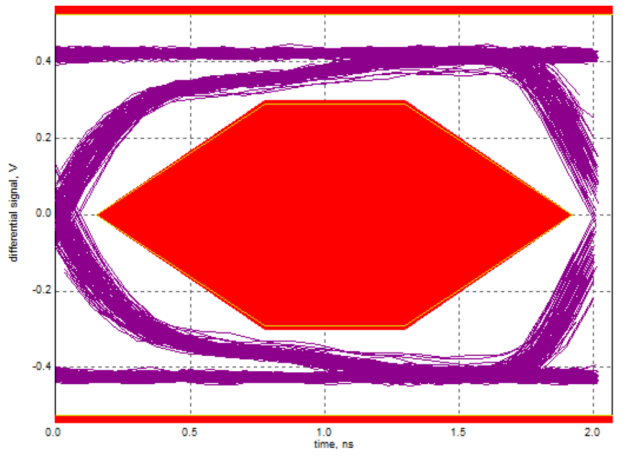
Passing eye diagram
For an eye diagram that fails the test, check the following:
Verify that the probes are calibrated
Use a compliant test fixture
Replace the cable or connector to rule out poor-quality accessories
Check whether the PCB design follows the USB 2.0 specification. If an ESD protection device with high parasitic capacitance is used on the USB High-Speed D+/D- lines, the eye diagram test may fail. An ESD diode with parasitic capacitance below 1 pF is recommended
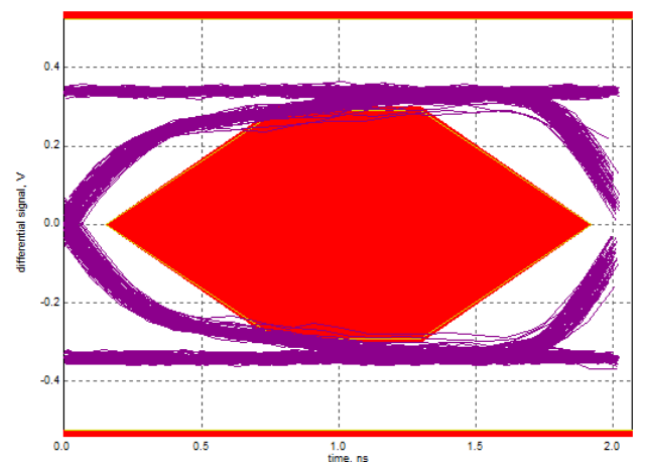
Failing eye diagram
USB 2.0 Full-Speed
For eye diagram testing of a Full-Speed interface, use the USB compliance test software provided by the oscilloscope vendor:
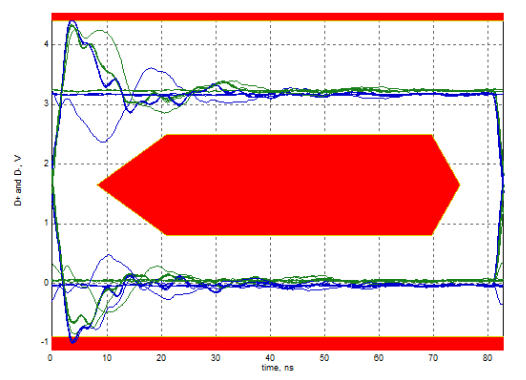
Failing USB 2.0 Full-Speed eye diagram (overshoot)
For the Full-Speed eye diagram failure shown above, add series resistors on D+/D- to reduce overshoot. Test results show that 22 Ω, 33 Ω, and 44 Ω series resistors can all improve overshoot, with 33 Ω providing the best result.
Device Mode Test
Required Materials
Windows PC
USB XHSETT: Compliance test tool provided by USB-IF, used to place a USB 2.0 Device into compliance test mode
Test Firmware
Download the corresponding Device mode test firmware according to the chip model and chip revision.
Chip Model |
Chip Revision |
USB Speed |
Test Firmware |
|---|---|---|---|
ESP32-S2 |
All revisions |
Full-Speed |
|
ESP32-S3 |
All revisions |
Full-Speed |
|
ESP32-P4 |
< v3.0 |
High-Speed |
|
ESP32-P4 |
v3.0 |
High-Speed |
|
ESP32-P4 |
>= v3.1 |
High-Speed |
|
ESP32-S31 |
All revisions |
High-Speed |
Note
For a USB eye diagram test on the USB Serial/JTAG Port, simply put the chip into download mode and ensure that the device enumerates successfully.
Hardware Connection
Connect the PC, oscilloscope, and USB test fixture. High-Speed test fixtures differ from Full/Low-Speed test fixtures. Refer to the connection diagram in the oscilloscope compliance test software.
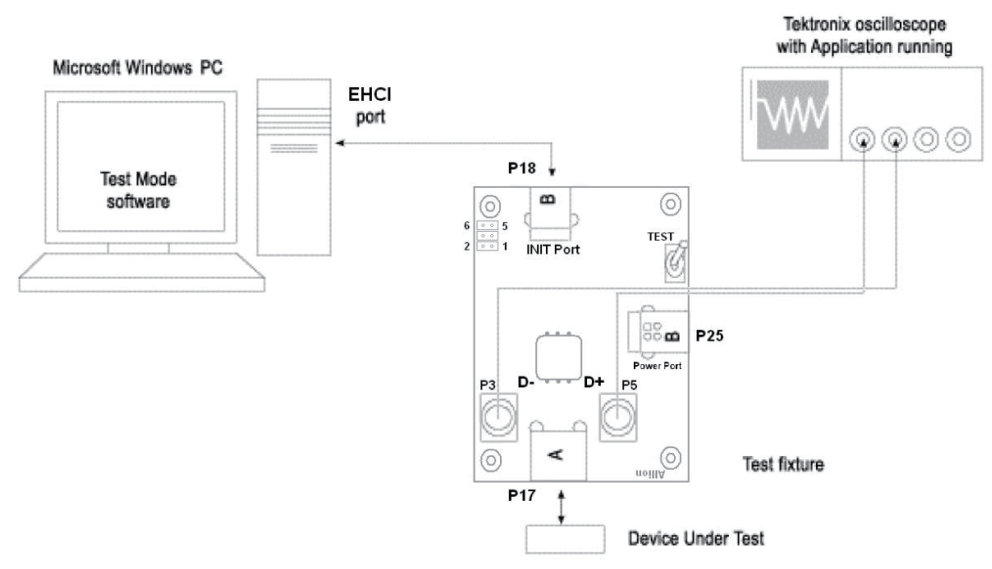
USB 2.0 Device signal quality test system
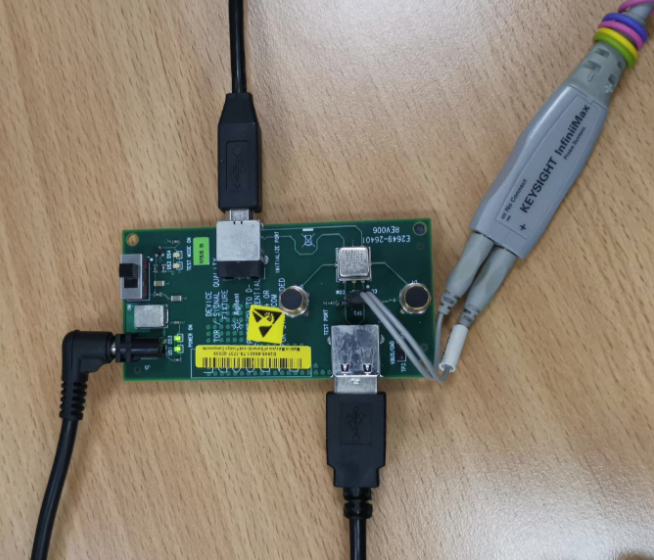
High-Speed Device signal quality test connection diagram
XHSETT Installation and Configuration
Check the USB port information in the PC Device Manager:
If the PC has a USB 3.x controller, use XHSETT. xHCI supports USB 1.x/2.0/3.x
If the PC has a USB 2.0 controller, use HSETT. HSETT supports USB 1.x/2.0
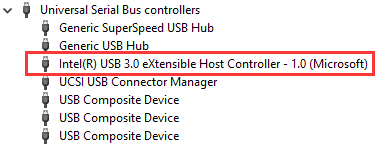
USB 3.x controller
Note
After HSETT/XHSETT is installed and launched, it takes control of all USB ports on the PC, making them temporarily unavailable. Before running HSETT/XHSETT on the test host and restarting the PC, connect a PS/2 keyboard and mouse to prevent interruption. If a PS/2 mouse is unavailable, you can use Remote Desktop or another remote control tool.
After installing HSETT/XHSETT, configure it as follows:
Open XHSETT and select Device mode:
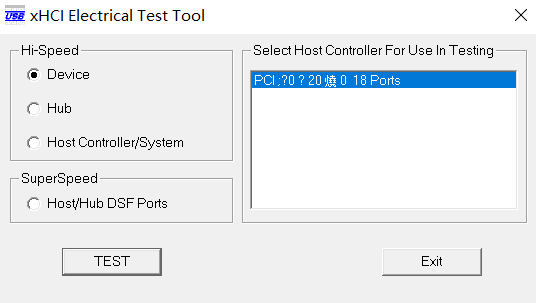
XHSETT mode selection
Click the Enumerate Bus button to scan. After the device is detected, select the device under test and choose Device Command:
For a High-Speed device, select TEST_PACKET under Device Command
For a Full-Speed device, select (LOOP) DEVICE DESCRIPTOR under Device Command
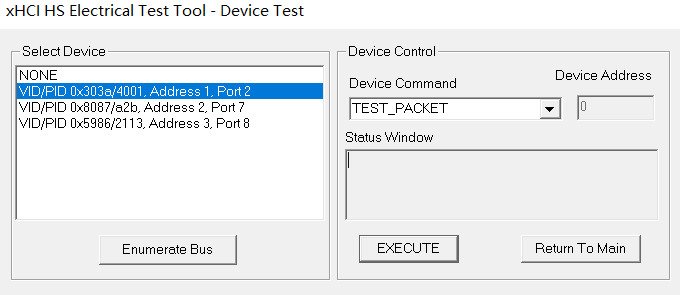
XHSETT device selection
After completing the configuration above, follow the instructions in Oscilloscope Eye Diagram Test to perform the test and analyze the results.
Host Mode Test
Test Firmware
After USB Host completes enumeration of a High-Speed device, the Host mode test firmware controls the USB Host port to continuously transmit standard USB 2.0 TEST_PACKET packets. Download the corresponding Host mode test firmware according to the chip model and chip revision.
Chip Model |
Chip Revision |
USB Speed |
Test Firmware |
|---|---|---|---|
ESP32-P4 |
< v3.0 |
High-Speed |
|
ESP32-P4 |
v3.0 |
High-Speed |
|
ESP32-P4 |
>= v3.1 |
High-Speed |
|
ESP32-S31 |
All revisions |
High-Speed |
High-Speed Test
Required Materials
A USB flash drive that supports USB 2.0 High-Speed, used only to let USB Host complete High-Speed enumeration and enter
TEST_PACKETmodeUSB 2.0 High-Speed Host test fixture
Test Procedure
Flash the corresponding Host mode test firmware to the board under test, and monitor the runtime log through the serial port.
Connect the High-Speed USB flash drive to the USB Host port under test. After the firmware detects the flash drive, it completes device enumeration and automatically switches the USB Host port to
TEST_PACKETmode.Verify that the device speed in the log is
High speedand that the following messages appear:TEST_PACKET operation successful Unplug the U-disk and connect the USB test fixture / oscilloscope The host continues sending USB 2.0 test packets
If the log indicates that the device is not High-Speed, replace the USB flash drive or USB cable, or check the hardware connection. Then reset the board under test and retry.
Keep the board under test powered and do not reset it. Unplug the USB flash drive, then connect the USB 2.0 High-Speed Host test fixture to the same USB Host port under test. After entering
TEST_PACKETmode, the firmware continuously transmits standard test packets.Connect the test fixture to the oscilloscope. Following the instructions for the oscilloscope vendor’s compliance test software, select the USB 2.0 High-Speed Host test item, then follow Oscilloscope Eye Diagram Test to complete the eye diagram test and analyze the results.
Note
The Host test firmware directly controls the USB Host port to enter TEST_PACKET mode, so HSETT/XHSETT is not required. To exit test mode or restart the test, reset or power-cycle the board under test, then repeat the steps above starting with connecting the High-Speed USB flash drive.